
Image to Image AI: Turn a Reference Photo into New Visuals


Summarize with
Summary
Learn how image to image AI transforms reference photos into ecommerce visuals, product variations, posters, and videos with AdsTurbo Studio. Start creating.
By adsturbo.ai | Published 2026-11-09 | Updated 2026-11-09
Image to image AI uses one or more uploaded images plus a text prompt to create a new visual while preserving important elements from the references. For ecommerce sellers, this means turning one product photo into lifestyle scenes, seasonal campaigns, product variations, posters, and short-form ad assets without rebuilding every concept from scratch.
What Is Image to Image AI?
Image to image AI is a visual generation method that starts with an existing image rather than a blank text prompt. You provide a reference photo, explain what should change, and ask the model to keep the elements that must remain consistent.
The practical difference is control:
- Text to image starts with language and invents the visual structure.
- Image to image starts with an existing subject, composition, product, person, or style.
- Multi image to image combines several references into one generated composition.
For example, a seller can upload a clean product photo and request: “Keep the product shape and color, place it on a bright kitchen counter, add soft morning light, and leave space on the right for headline text.”
This approach is especially useful when product identity matters. Instead of asking an AI model to invent a product from words, you give it a visual anchor and define the transformation.
What Can You Create With an AI Image to Image Generator?
An AI image to image generator is most useful when the goal is variation with continuity. The source image provides the anchor; the prompt defines the creative direction.
Restyle an existing image
You can change the visual treatment while keeping the main subject recognizable:
- Studio photography to editorial lifestyle photography
- Realistic product photo to premium campaign concept
- Daylight scene to evening scene
- Minimal composition to seasonal or promotional styling
For ecommerce, this supports creative testing without changing the item itself.
Replace the background or setting
A plain product image can become a kitchen, bedroom, gym, office, outdoor, or retail environment. The strongest prompts specify the setting, camera angle, lighting direction, and shadow behavior.
For more controlled product scene work, use AdsTurbo’s ecommerce product image generator to create product-focused visual variations.
Generate product variations
Image to image workflows can create multiple versions for:
- Marketplace listing galleries
- Social media posts
- Paid ad concepts
- Seasonal campaigns
- Promotional banners
- Regional creative testing
The important safeguard is to state what must not change: product dimensions, logo placement, material, color, packaging text, and key features.
Combine multiple reference images
Multi-reference generation lets you assign different roles to different images:
- Image 1: the product
- Image 2: the model or person
- Image 3: the environment
- Image 4: the visual style or composition
A useful prompt names those roles directly: “Use the product from reference 1, the model pose from reference 2, and the background mood from reference 3.”
This is more reliable than writing “combine these images,” because the model receives a clear hierarchy.
How to Use Image to Image in AdsTurbo Studio
AdsTurbo Studio’s Image mode provides a practical workflow for reference-guided generation.
- Open Image mode in AdsTurbo Studio.
- Upload one or more reference images. Use clear image files with visible subjects and minimal distractions.
- Write a transformation prompt. Explain what should stay, what should change, and how the result should be framed.
- Choose an image model.
- Select the aspect ratio and resolution. Match the destination, such as square marketplace imagery, vertical social content, or landscape display creative.
- Generate and compare several outputs.
- Refine one variable at a time. Change the background, lighting, composition, or copy space rather than rewriting the entire prompt.
AdsTurbo Studio supports many aspect ratios and can generate up to about 10 images per generation. Reference-image limits and resolution options depend on the selected model. 4K and higher resolutions are part of paid plans.
Which model should you choose?
| Model | Reference images | Resolution or format notes | Good starting use |
|---|---|---|---|
| GPT Image 2 | Up to 4 | 1K or 2K | Product edits and general-purpose visual generation |
| Nano-Banana 2 | Up to 9 | 0.5K to 4K | Multi-reference scenes and flexible variations |
| Nano-Banana Pro | Up to 9 | 1K to 8K | High-resolution campaign concepts |
| Seedream 5 Lite | Up to 9 | Automatic resolution | Exploration when you do not need to set a resolution |
| Seedream 5 Pro | Up to 10 | 1K or 2K | Larger reference sets and structured compositions |
| Grok Imagine Image 2.0 | Up to 3 | 1K or 2K; aspect ratio follows the reference | Reference-led transformations |
Studio also offers GPT Image 2.5 and Nano-Banana 2.1. The best model is not always the one with the highest resolution. For product work, reference capacity and preservation of the item may matter more than output size.
Prompt Patterns That Preserve Product Identity
The most dependable image-to-image prompts use a simple structure:
Keep [subject and fixed details], change [one main variable], place it in [scene], use [lighting and camera direction], leave [composition requirement].
Examples:
- “Keep the product shape, label, and blue color unchanged. Replace the background with a clean white studio backdrop. Add a soft natural shadow and center the product.”
- “Keep the handbag, stitching, hardware, and proportions unchanged. Place it on a modern café table with warm window light. Use a vertical 4:5 composition.”
- “Keep the package design and all readable text unchanged. Create a premium holiday scene with pine branches, warm lights, and empty space at the top for a promotion.”
- “Use the product from reference 1 and the model pose from reference 2. Keep the garment color and silhouette unchanged. Create a clean outdoor lifestyle scene.”
A useful internal test is the fixed-versus-variable split:
- Fixed: product identity, color, logo, packaging, proportions, functional details
- Variable: background, props, lighting, model, season, camera angle, text space
If an output changes a fixed detail, simplify the prompt and reduce the number of requested changes.
Ecommerce Examples: From Product Image to Campaign Asset
White-background listing image
Start with a clear product photo and request a pure white background, centered framing, natural contact shadow, and no extra objects. AdsTurbo’s white background image tool can support this type of listing preparation.
Background replacement
For ads and social posts, retain the product while changing the environment. AdsTurbo’s background replacement workflow is useful when the scene—not the product—is the creative variable.
Virtual try-on concepts
For apparel and accessories, combine a product reference with a model or pose reference. A generated image can help visualize audience-specific creative directions before producing a larger campaign. Explore the virtual try-on workflow for this use case.
Event posters and promotions
Use a product image, brand visual, and campaign direction to create promotional layouts. For sale and launch graphics, try the AdsTurbo event poster maker.
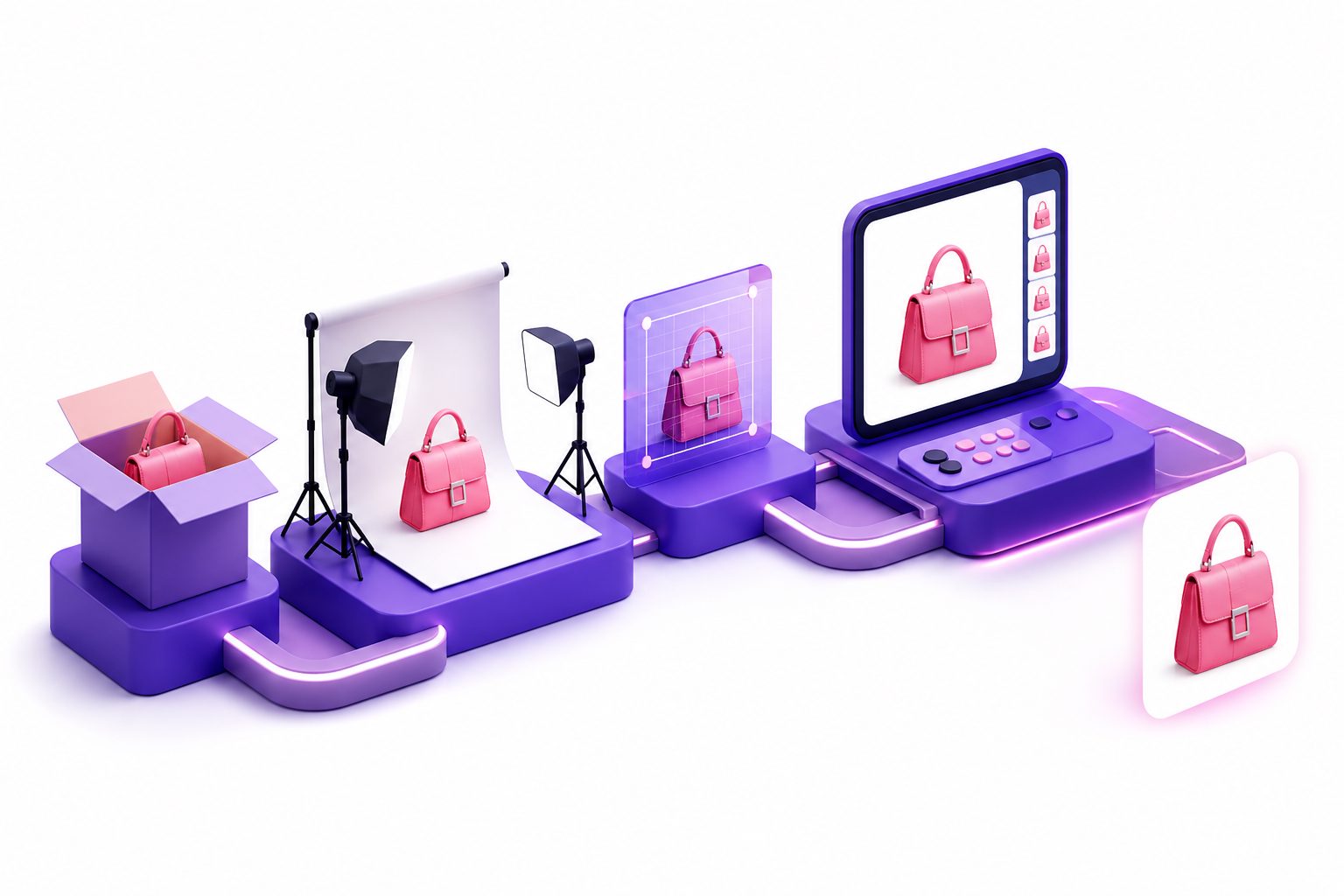
The practical advantage is asset reuse: one product reference can become a listing image, campaign poster, social variation, and video starting point.
Turn the New Image Into a Product Video
An image is often only the first stage of a creative test. Once a product visual is ready, it can become the basis for a short product advertisement with product demonstrations, UGC-style presentation, or promotional messaging.
AdsTurbo can turn a product image into a short video ad. Use the product video generator when the next goal is to turn a static visual into an ad-ready video concept.
A practical production sequence is:
- Generate three image variations for different audiences.
- Select the clearest product-preserving version.
- Add a short benefit, offer, or use case.
- Turn the selected visual into a product video.
- Create additional language, subtitle, or format variations for testing.
Frequently Asked Questions
Is image to image better than text to image?
It depends on the objective. Image to image is usually better when a product, person, pose, or composition must remain recognizable. Text to image is more suitable for blank-canvas concepts where no reference needs to be preserved.
What is multi image to image?
Multi image to image uses several reference images in one generation. Each image can provide a different element, such as a product, model, setting, pose, or visual style.
How many reference images can I upload in AdsTurbo Studio?
The limit depends on the model. GPT Image 2 accepts up to four references, several models accept up to nine, Seedream 5 Pro accepts up to ten, and Grok Imagine Image 2.0 accepts up to three.
Can image to image create marketplace visuals?
Yes. It can create product variations for listings, lifestyle scenes, promotional graphics, and social formats. Review generated packaging text, logos, measurements, and product details before publishing.
How do I get more consistent results?
Use a clear source image, identify fixed details explicitly, request one major change at a time, and select an aspect ratio that matches the final placement. For multi-reference work, describe the role of each uploaded image.