 AdsTurbo
By Zengshi AI
Zengshi AIzengshi.ai
Your full-funnel growth partner in the AI era. AdsTurbo is one of its four products, alongside MaxAEO AI search visibility, Toppp AI sales & support and PopTo social content creation.
See all productsAdsTurboYour full-funnel growth partner in the AI era. AdsTurbo is one of its four products, alongside MaxAEO AI search visibility, Toppp AI sales & support and PopTo social content creation.
See all productsEnhance videos with the 4K option, or enlarge images by 2×, 4×, or 8×. Upload one video or image, run AI enhancement, and review the completed result before you publish.
Upscale a video to 4K, or enlarge an image by 2×, 4×, or 8×.
Enhance existing videos and images, then check the result against your source.
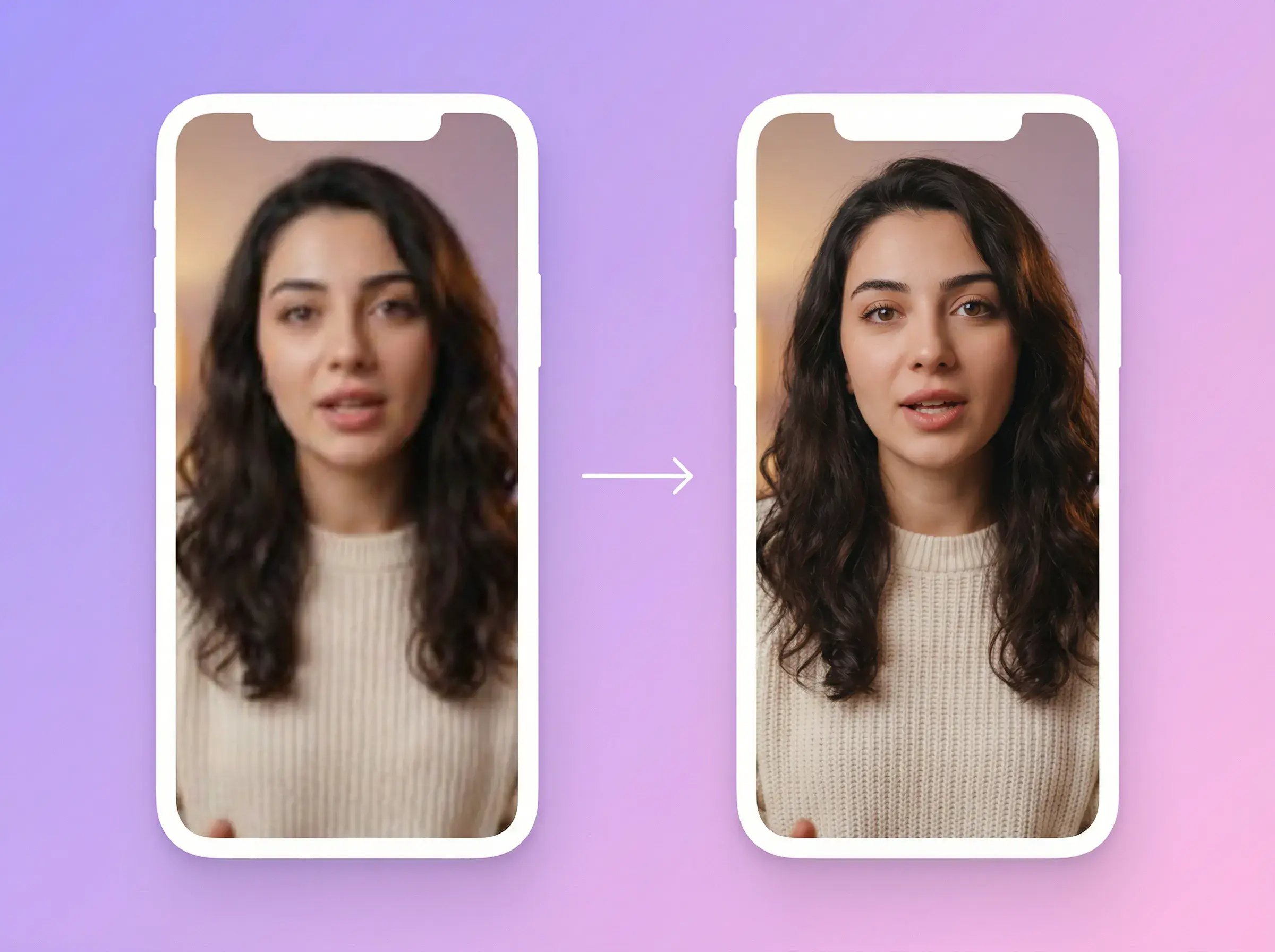
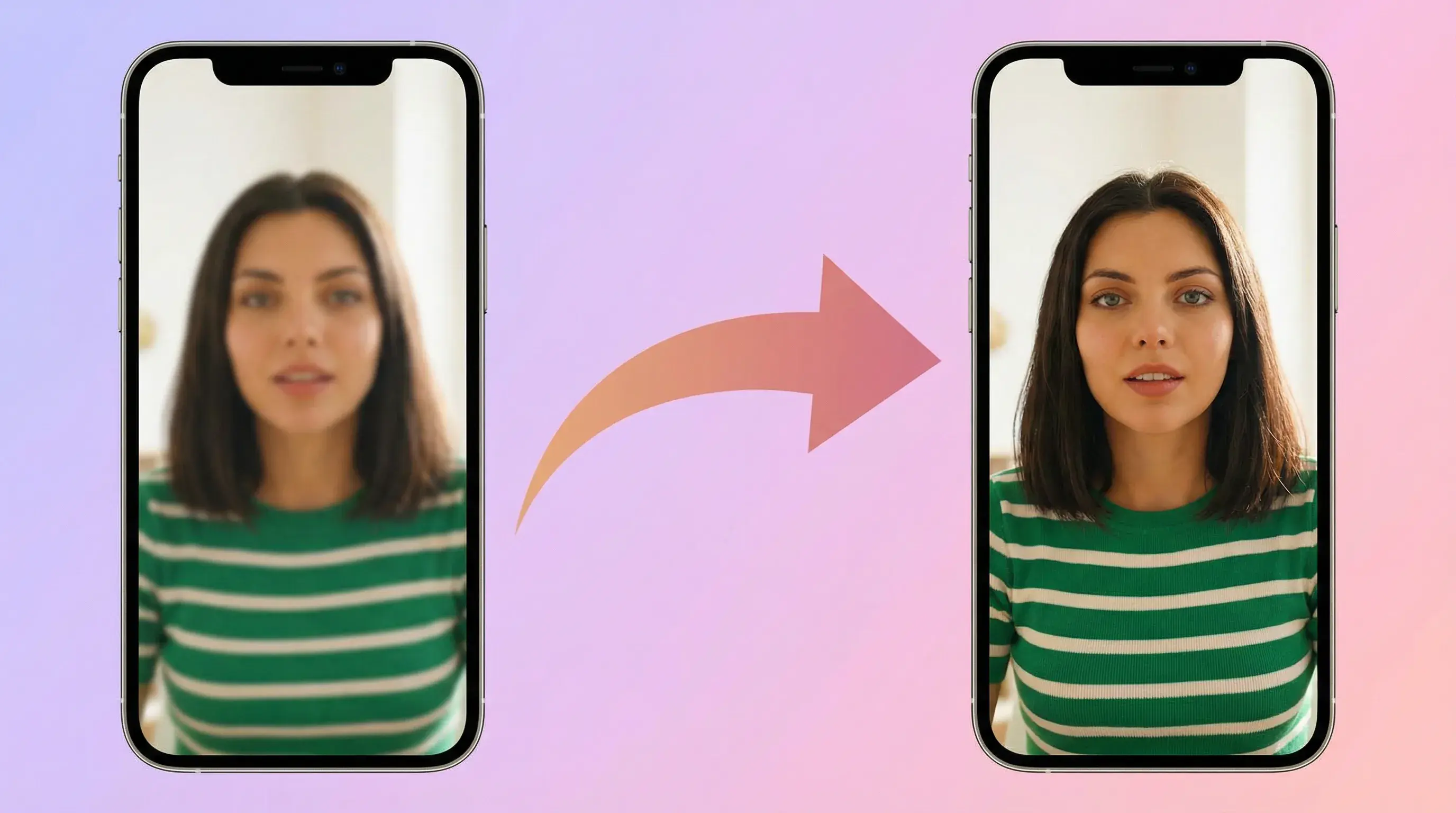
Create a higher-resolution version of an existing video with the 4K enhancement option.
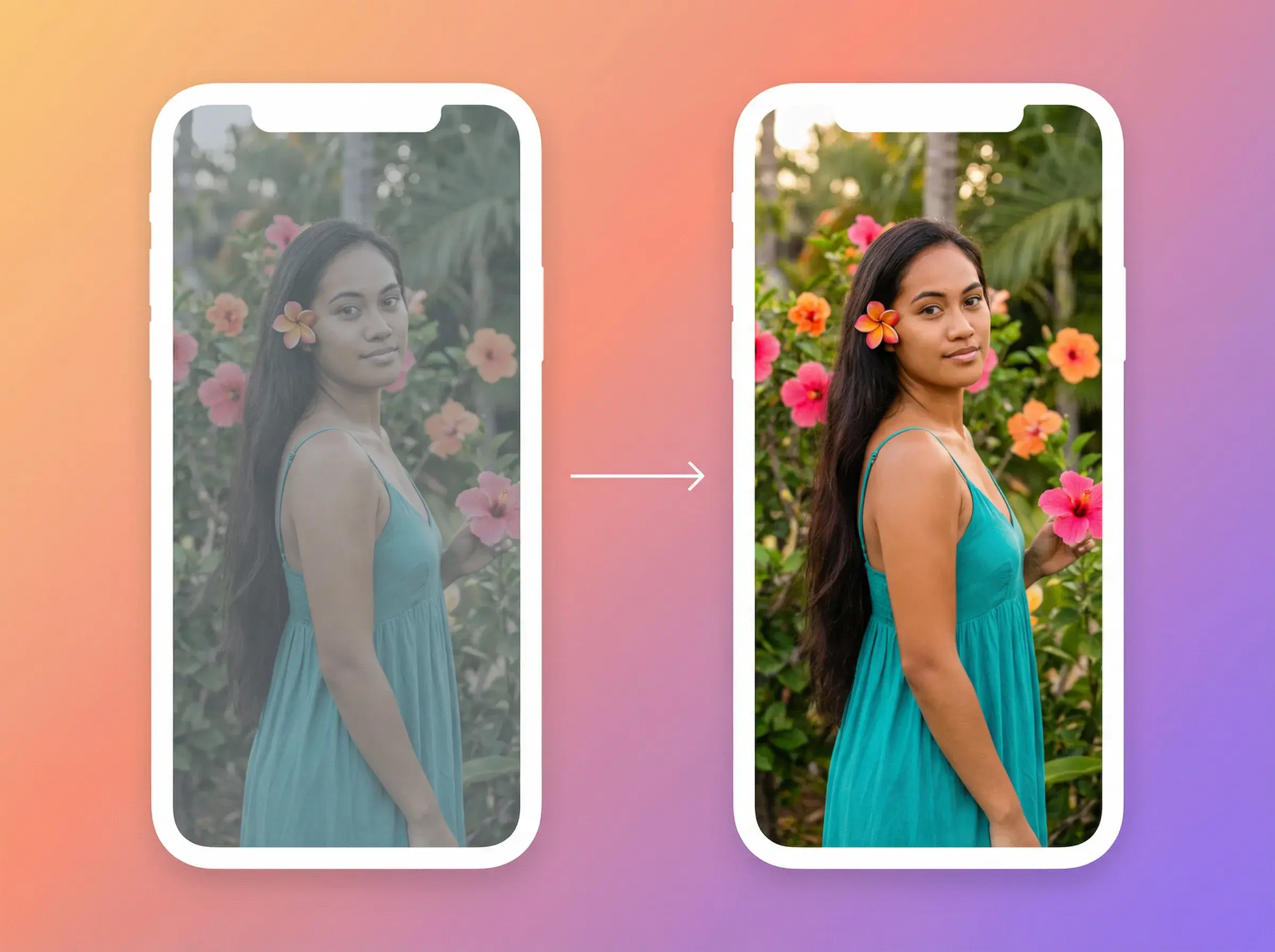
Enlarge an image by 2×, 4×, or 8×, then inspect products, faces, logos, and small text.
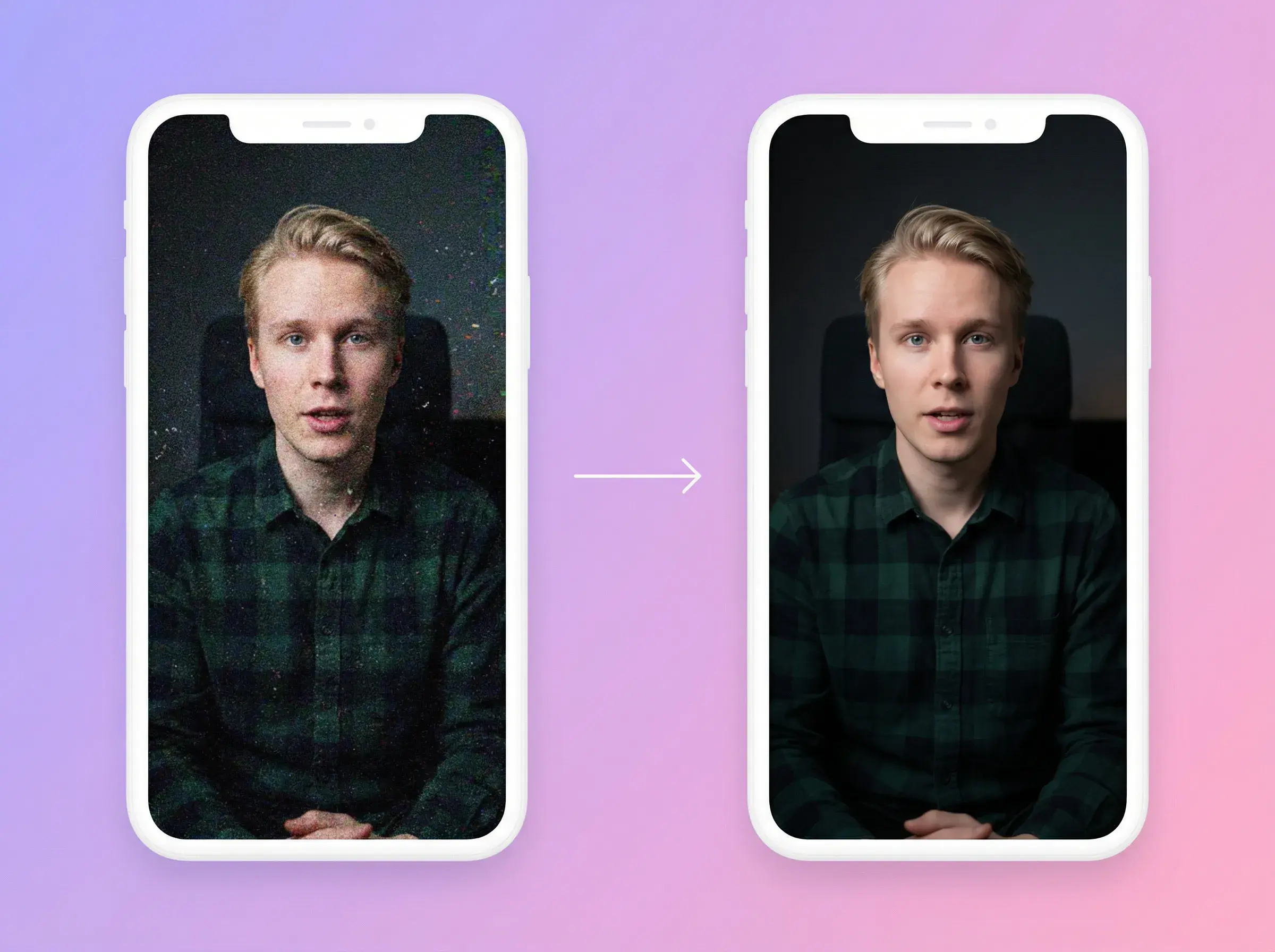
Try enhancement on soft footage or images, then check faces, products, logos, and small text before use.
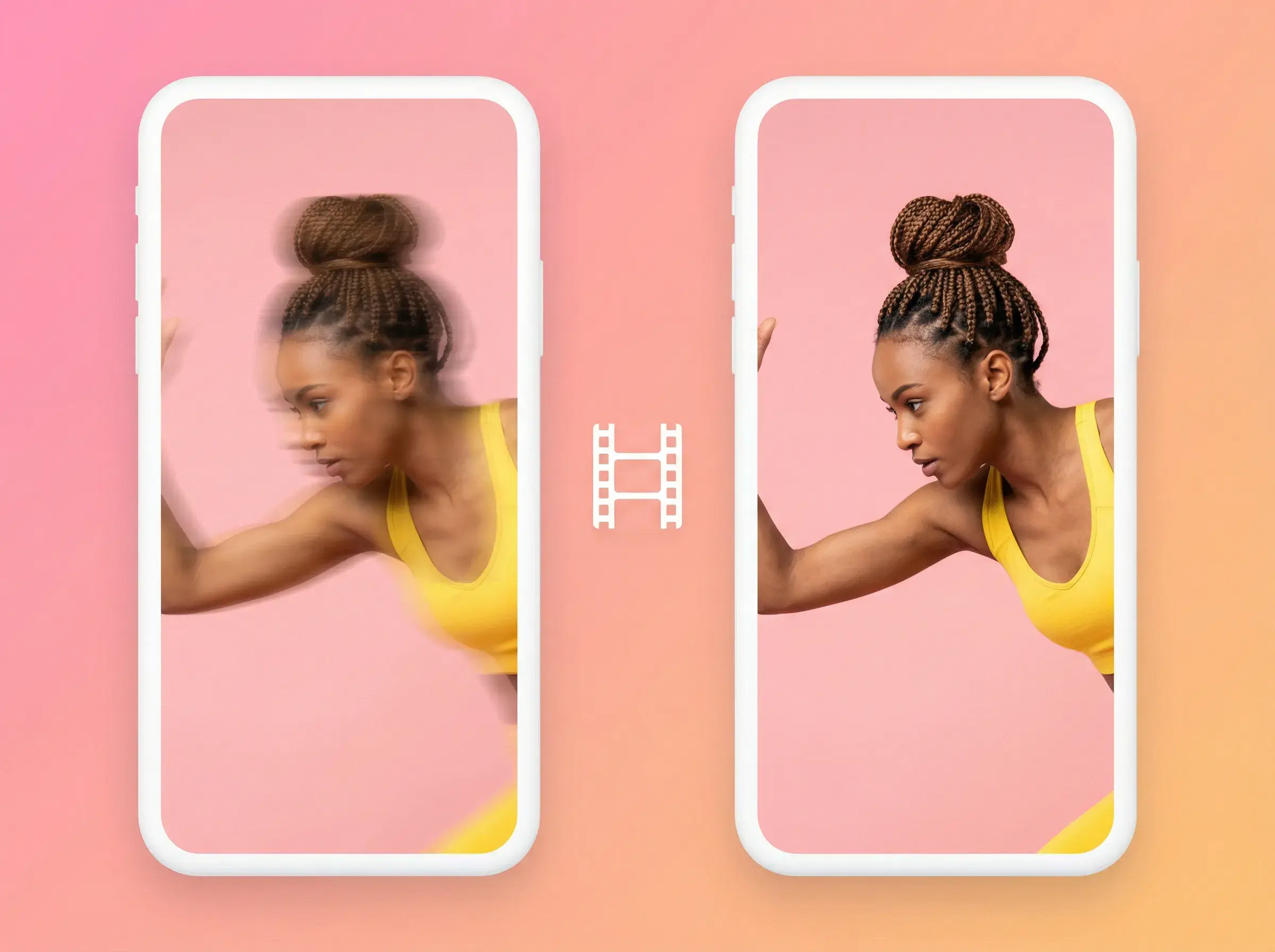
Try enhancement on a compressed video or image and review the result. Heavy artifacts may remain.
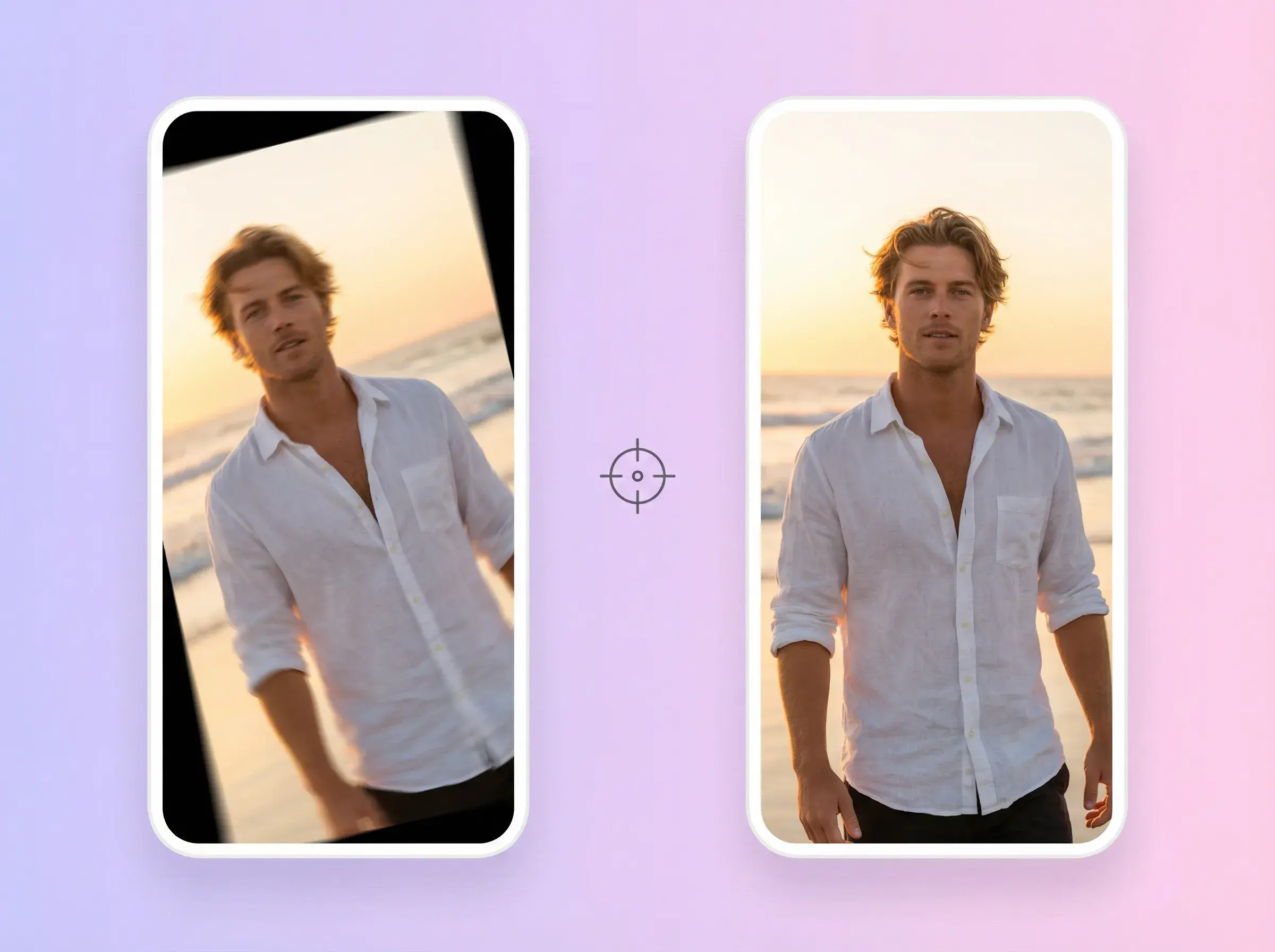
Prepare another version of a product image, product demo, ad clip, or social asset for your next edit.
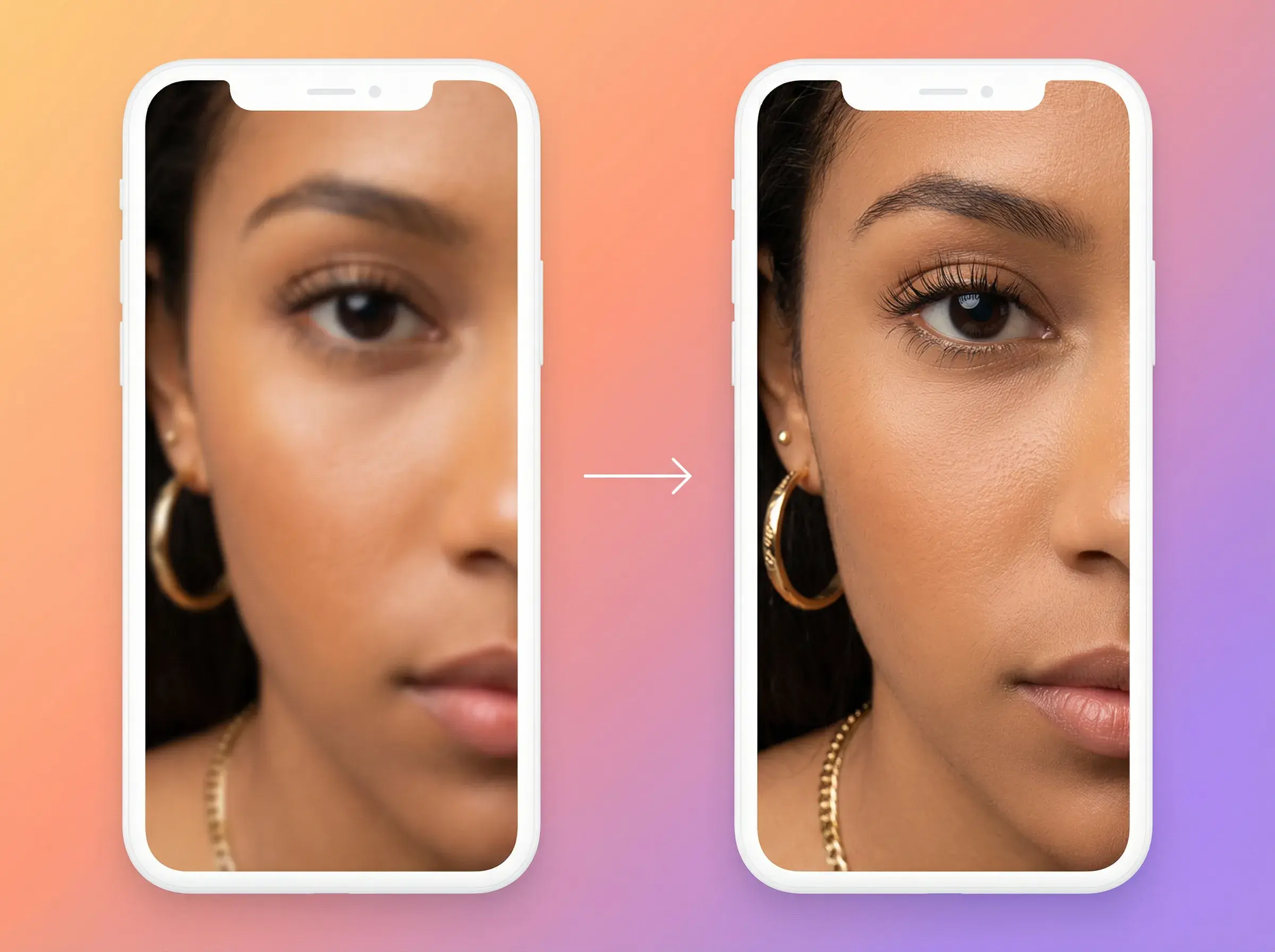
Open the completed video or image and check the result before downloading or publishing.
Upload one source file, choose the matching enhancement option, and review the result before downloading.
Add one video or image from your device, or choose one from AdsTurbo Assets.
Use 4K for video, or choose 2×, 4×, or 8× for an image. Check the credit amount, then submit the task.
Open the completed result in Task Center, compare it with your source, and download the reviewed file.
Import source
AI enhancement

Made for creators & ads
Need to turn a product image into a video? Explore Product Video.

Review your result
ONE WORKFLOW, TWO MEDIA TYPES
Options, credits, processing time, and result quality vary by source and settings. Review every completed video or image before publishing.
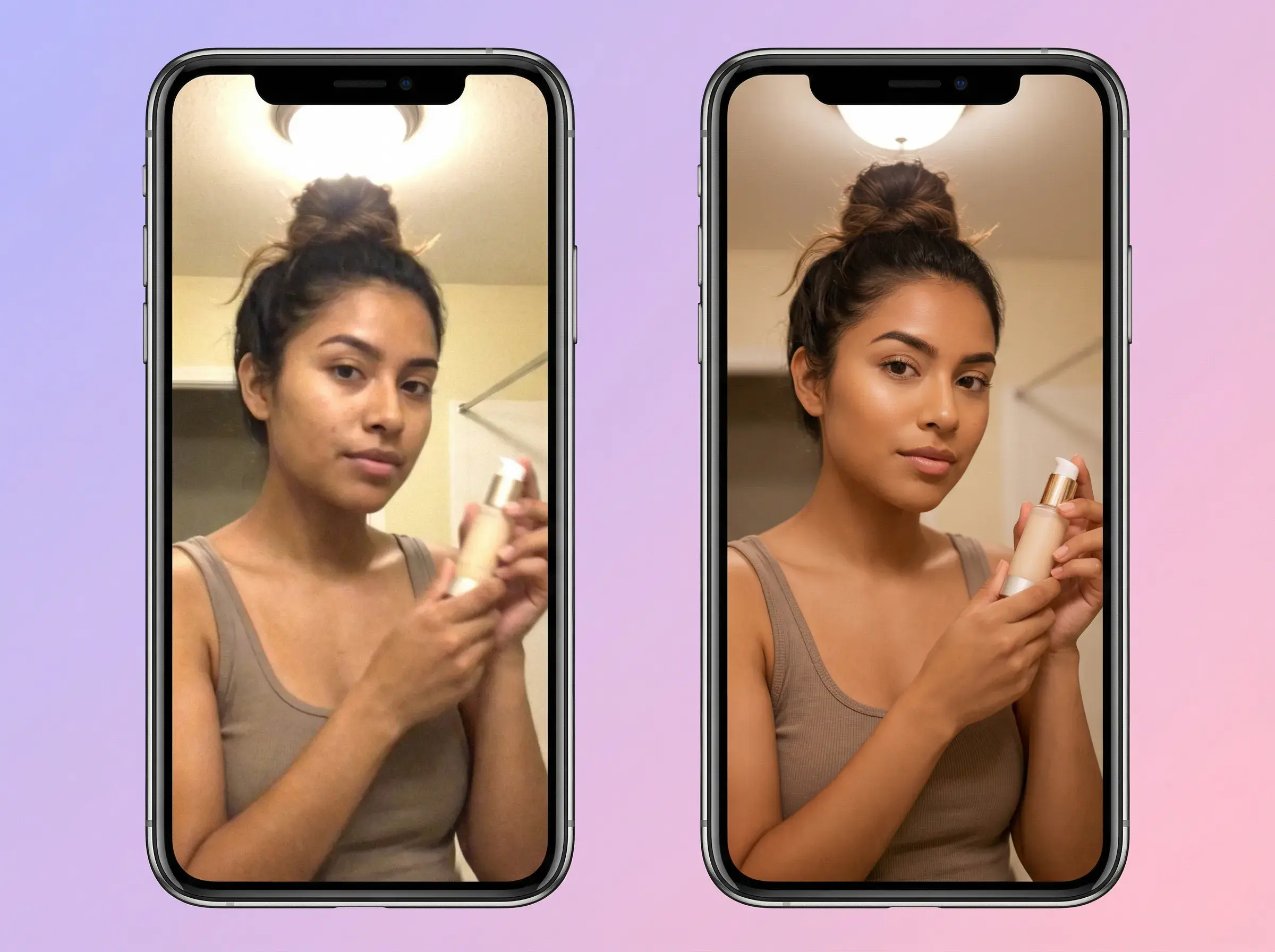
A video processed with the 4K enhancement option, ready for you to review.

An image enlarged by 2×, 4×, or 8×, ready for you to inspect and use in your next edit.
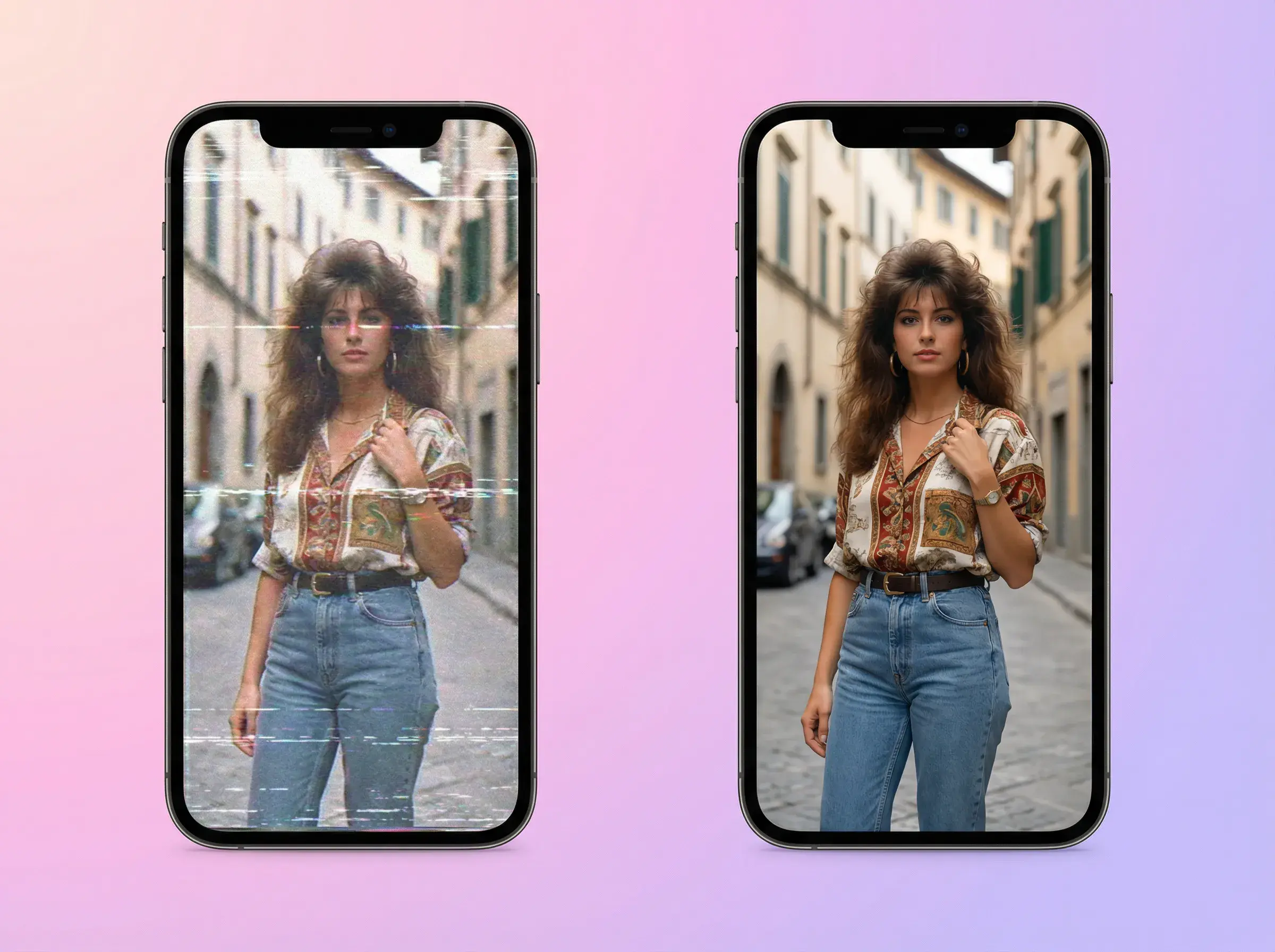
Create another version of an older video or image, then check it against the original before use.
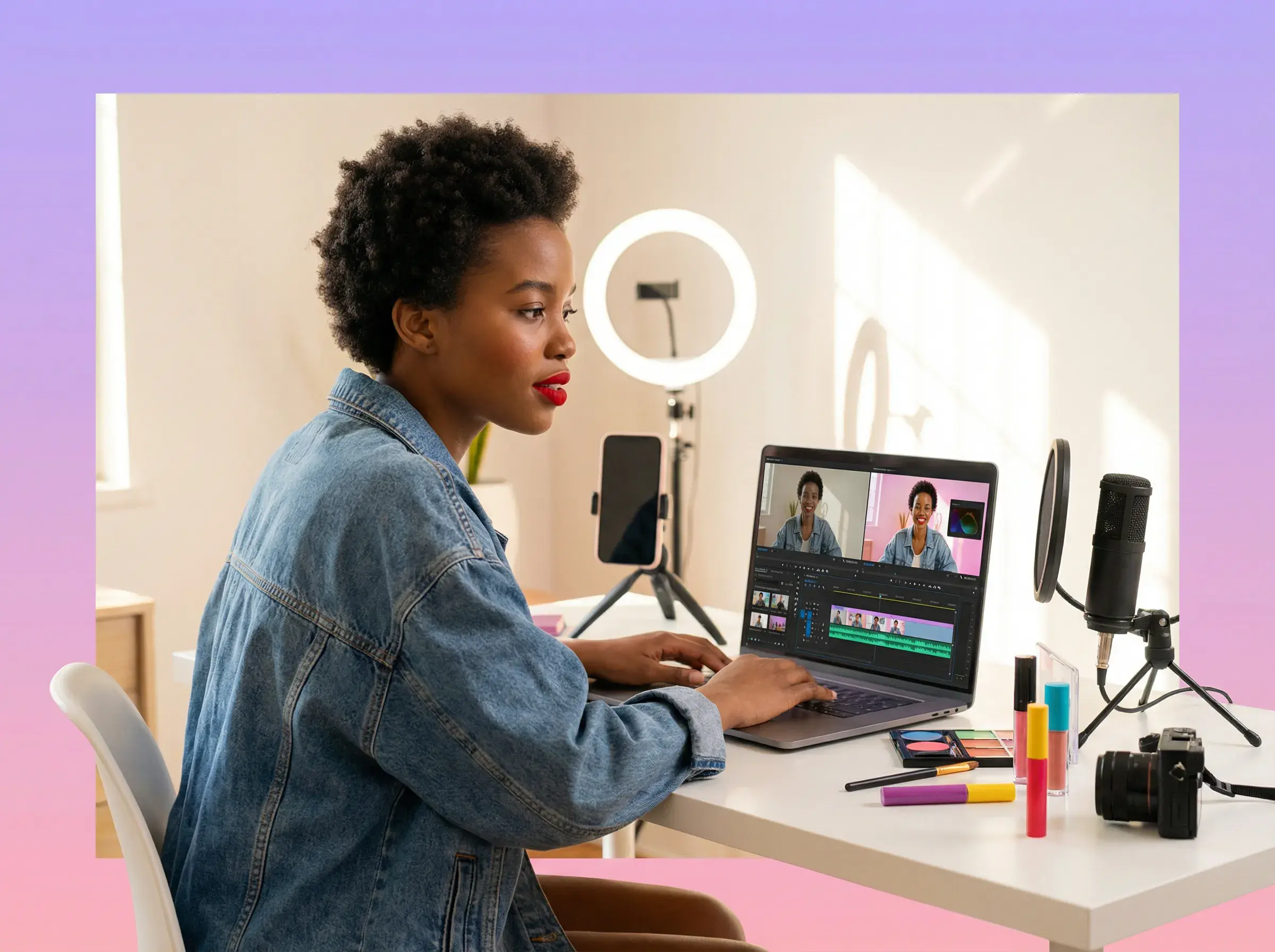
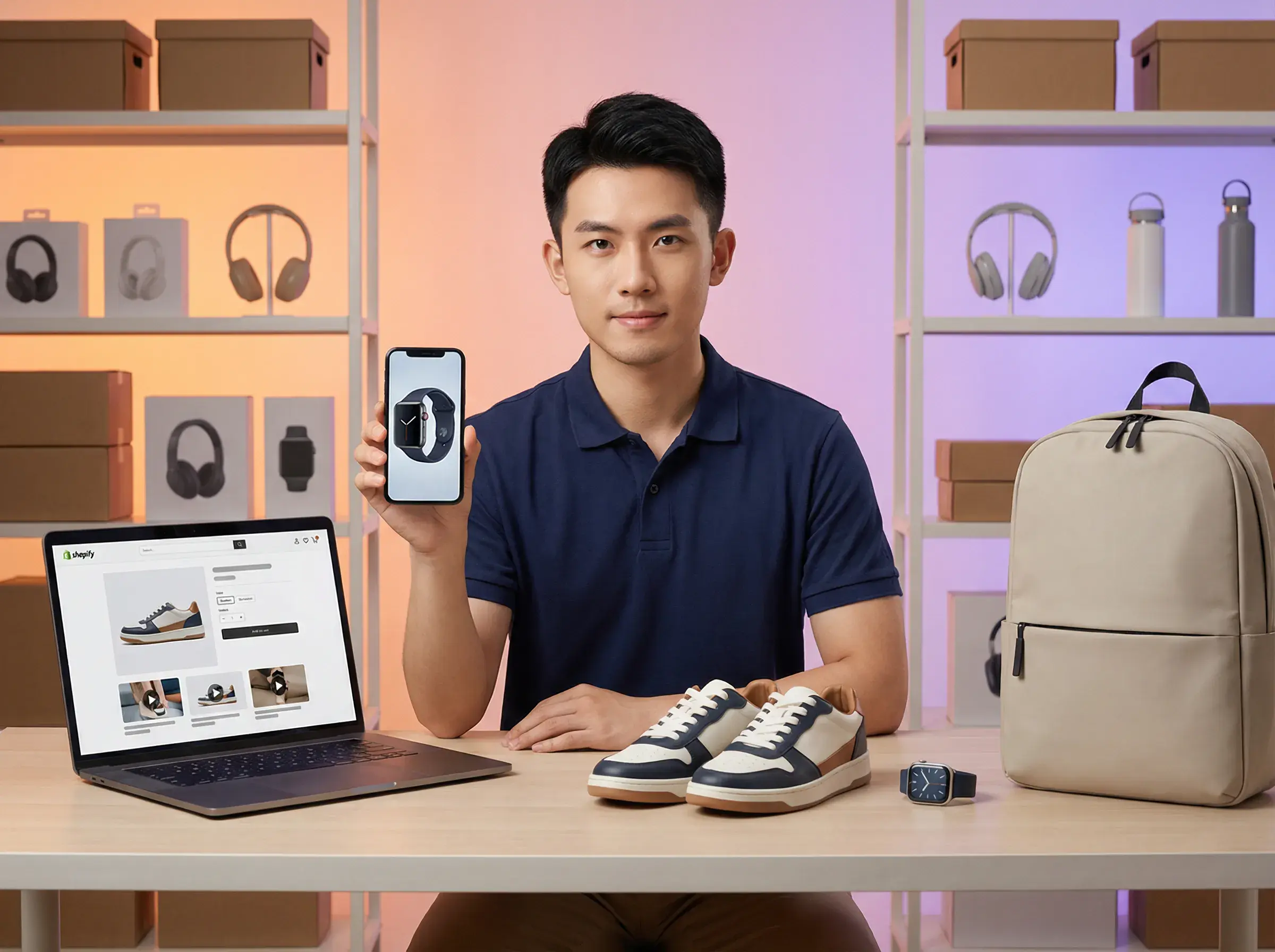
VIDEO UPSCALING
Add one source video or image from your device or AdsTurbo Assets. Keep the original file so you can compare it when reviewing the enhanced result.
Use the 4K option for a video. For an image, choose 2×, 4×, or 8× based on the output size you need. Image options do not apply to videos.
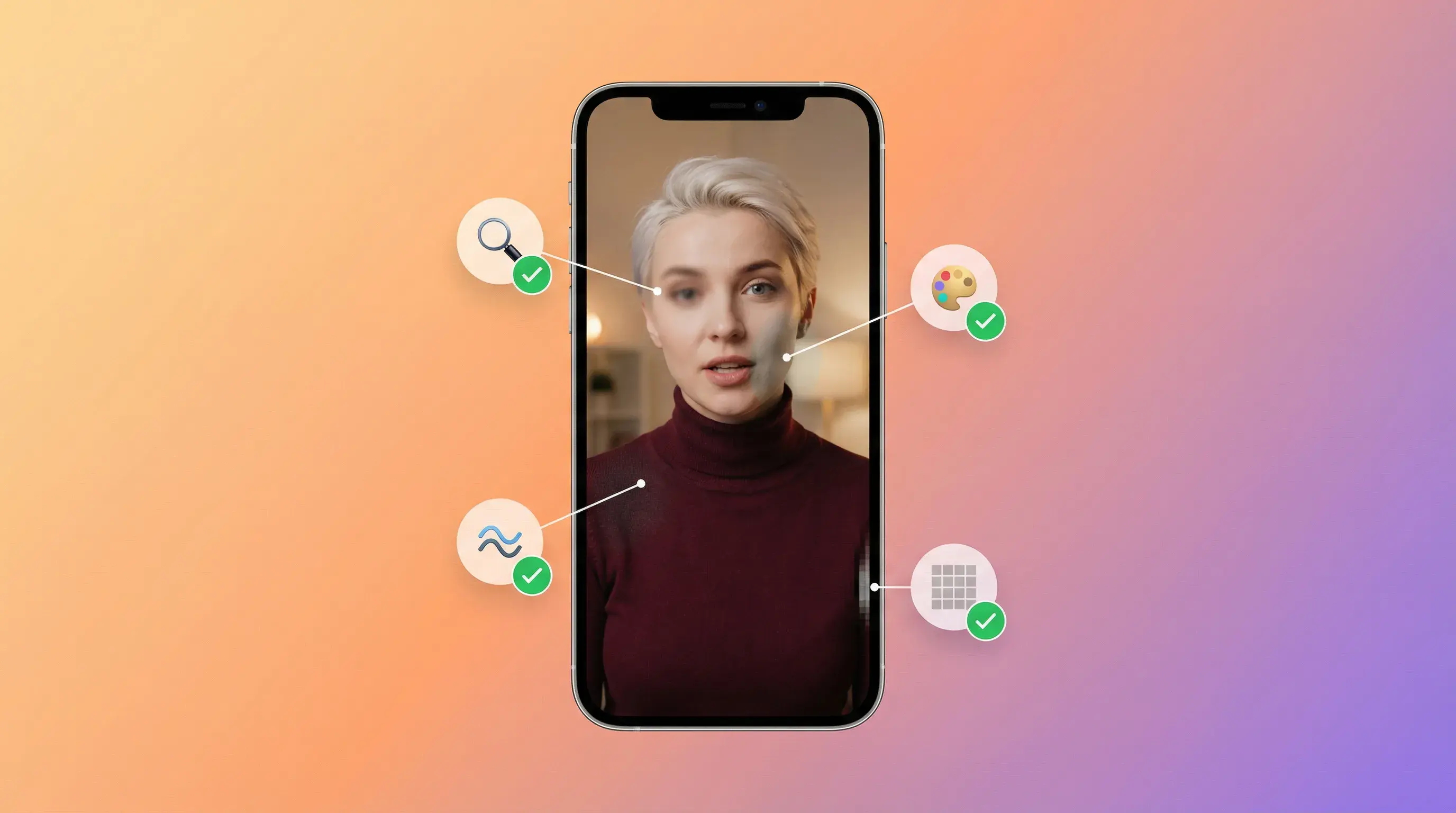
Results depend on the source. Increasing resolution does not guarantee the recovery of missing detail. Review faces, products, logos, edges, and small text in the result.
Use video upscaling for product demos, ads, UGC clips, and social videos. Use image upscaling for product images, ad visuals, and social assets. Review every result before publishing. Need captions? Use Video Subtitle after checking your video.
After processing finishes, open the completed result in Task Center to preview it. Downloads are available when your account has download access.
Check the task status in Task Center. When processing is complete, open the result to preview the enhanced video or image.
The generation button shows the credit amount before you submit a video or image task. Check this amount and your account’s download permissions before starting.
Use 4K enhancement for video or enlarge an image by 2×, 4×, or 8×, then review the completed result.
AdsTurbo