
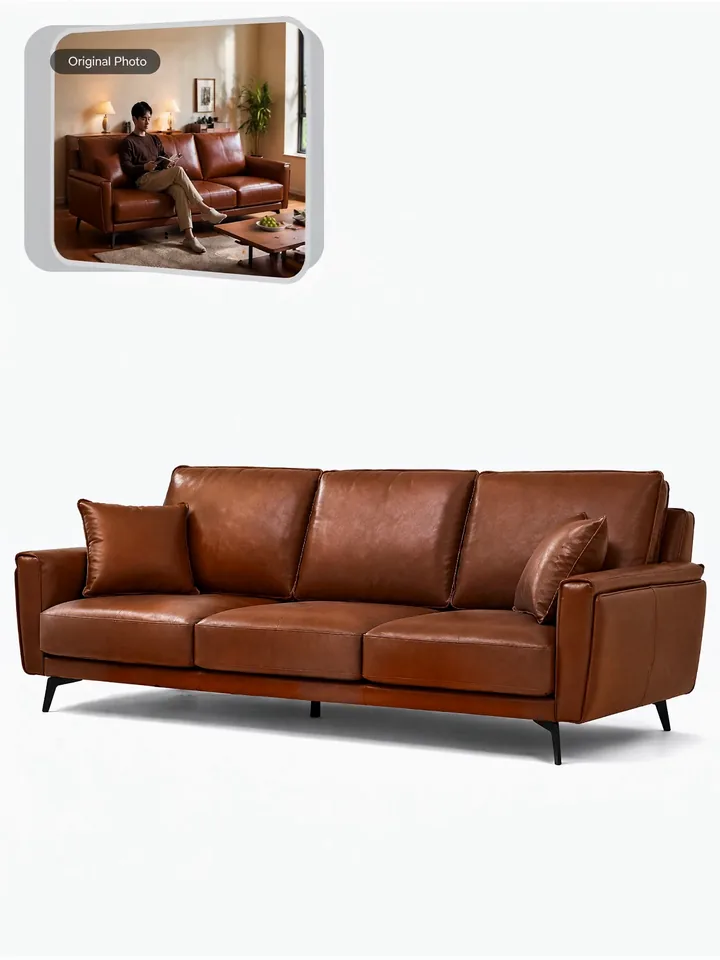
White background (this tool)
- Pixels behind the product
- White pixels fill the background.
- Typical use
- Product pages, catalogs and marketplace main images.
- What you get here
- A white background image at the same pixel size as your upload.
 AdsTurbo
Your full-funnel growth partner in the AI era. AdsTurbo is one of its four products, alongside MaxAEO AI search visibility, Toppp AI sales & support and PopTo social content creation.
See all productsStart with one clear product photo. Review the generated result before publishing, especially around fine edges, transparent materials, and shadows.
Open the workspace to upload a product photo and create a white background image.
Product Photo
Upload a product image, submit the task, then review and download the result.
Open the workspace and choose one clear product photo from your device or assets.
Each generation costs 22 credits. After uploading your product photo, click Generate to submit the task.
When the task is complete, open the result in the task list. Check product details and download the image for your product page or catalog.
A focused workflow for preparing product images for your store and catalog.
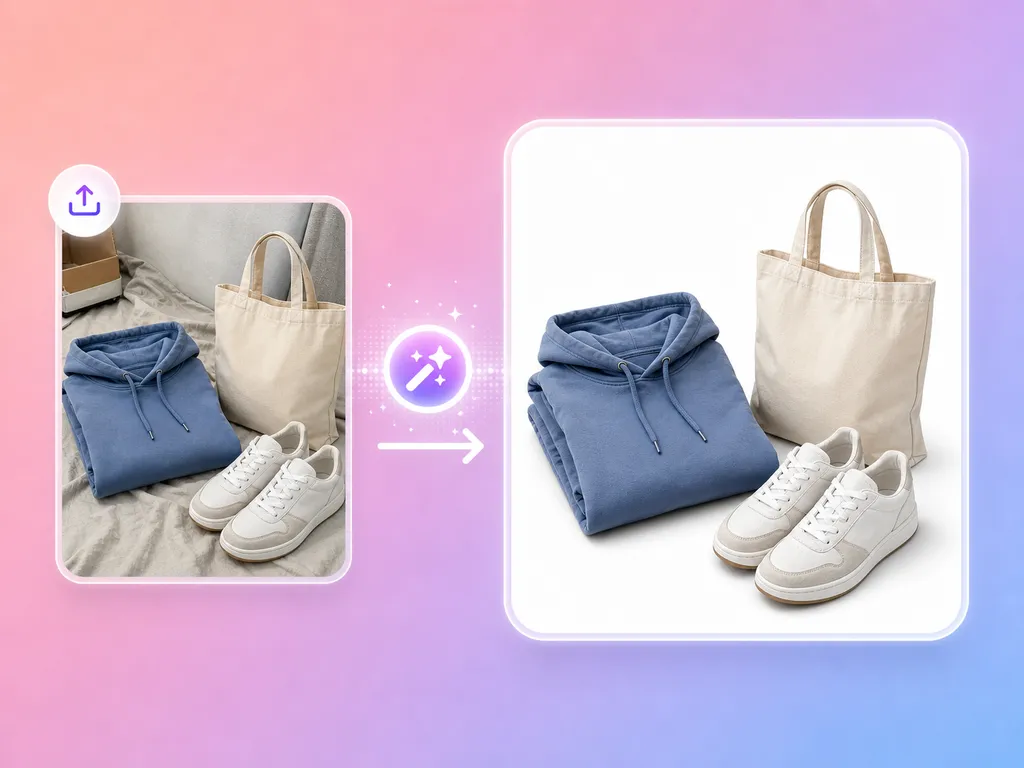
Upload one product photo and submit it for background processing. Review the generated result before downloading.
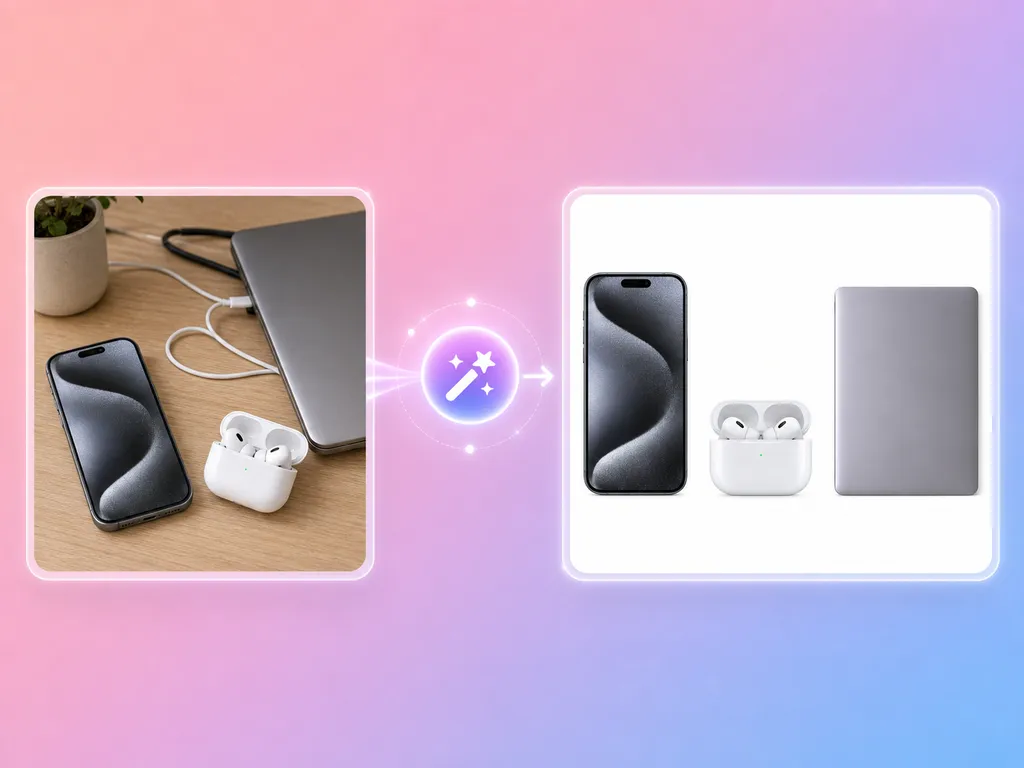
Inspect fine edges, holes, transparent materials, and reflections in the generated image before using it.

Use the generated image as an asset for a product page or catalog. Check your target platform’s image rules before publishing.

The current workflow processes one image at a time. Submit a separate task for each product photo.
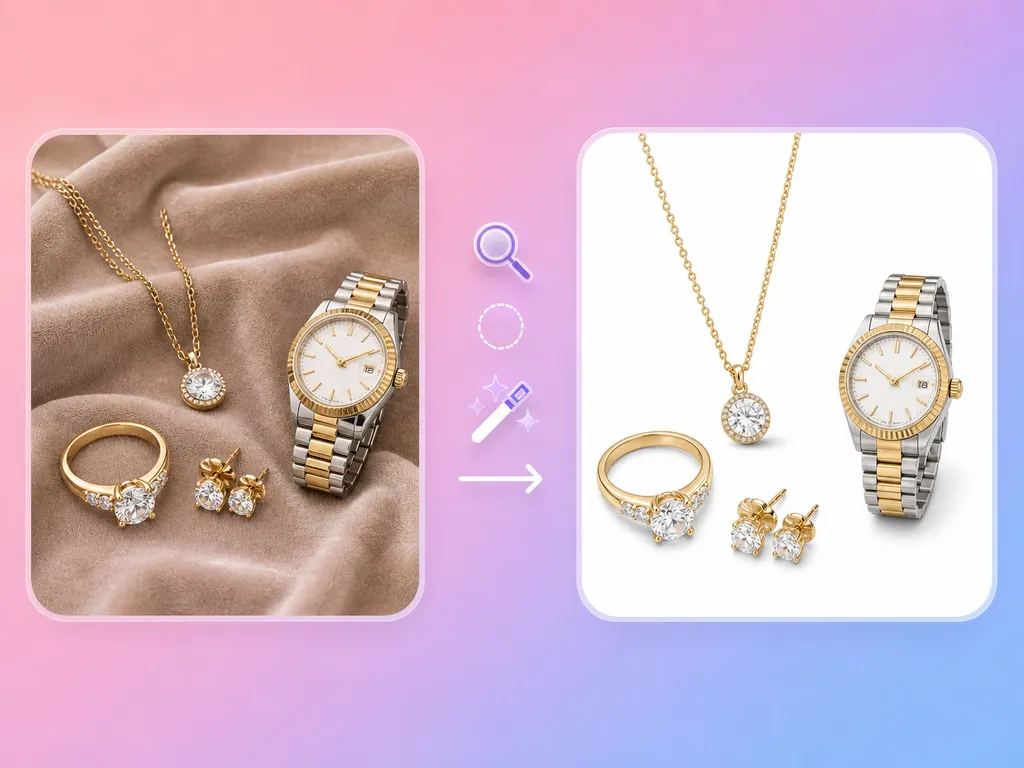
Choose a photo with a visible product outline. Avoid cropping off parts of the product or covering it with other objects.
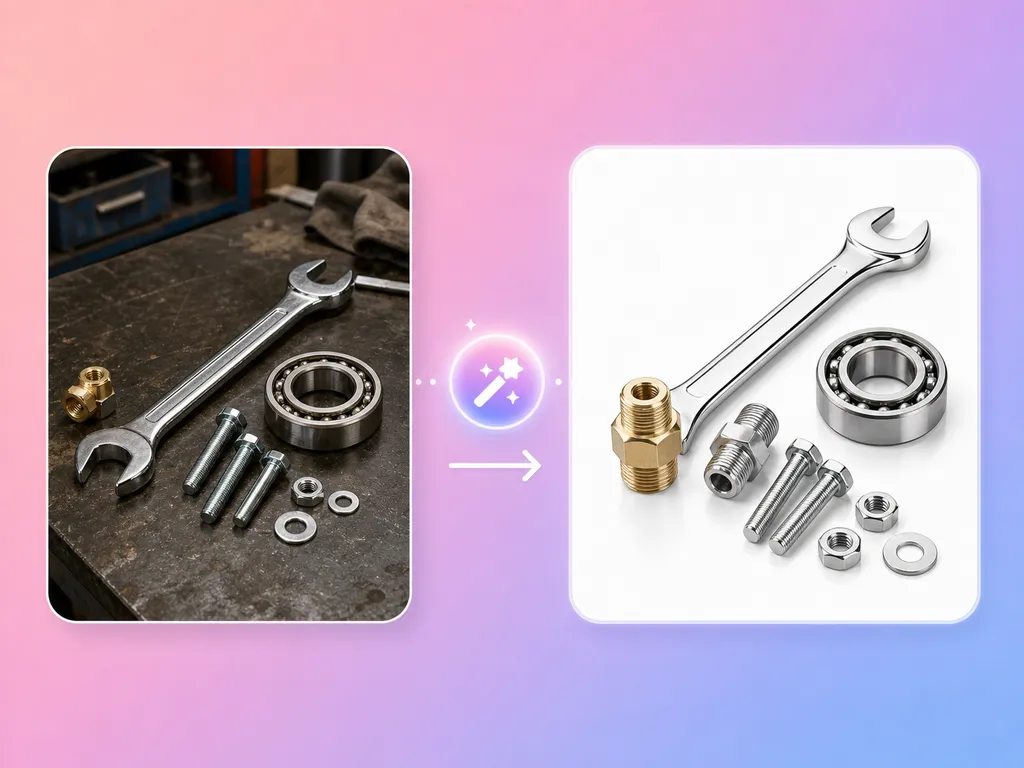
Upload a photo, submit the task, then review and download the result from the task list.

UPLOAD AND REVIEW
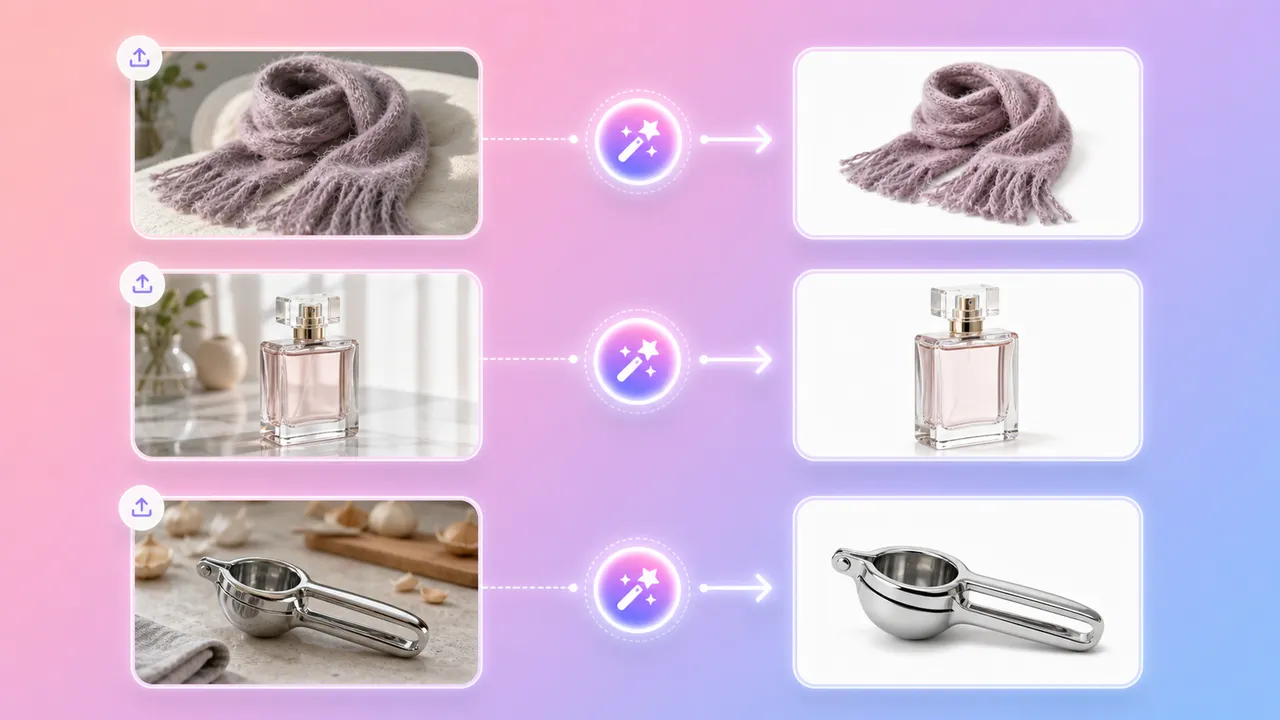
CHECK THE DETAILS

PREPARE FOR PUBLISHING
Need styled product visuals? Explore AI Product Image.

ORGANIZE YOUR CATALOG
Need a different scene? Explore Background Replace.
Choose the workflow that matches the file you need and the amount of manual control you want.
Choose the workflow that matches the file you need. This tool creates a white background image at the same pixel dimensions as your upload. Review the result before publishing.
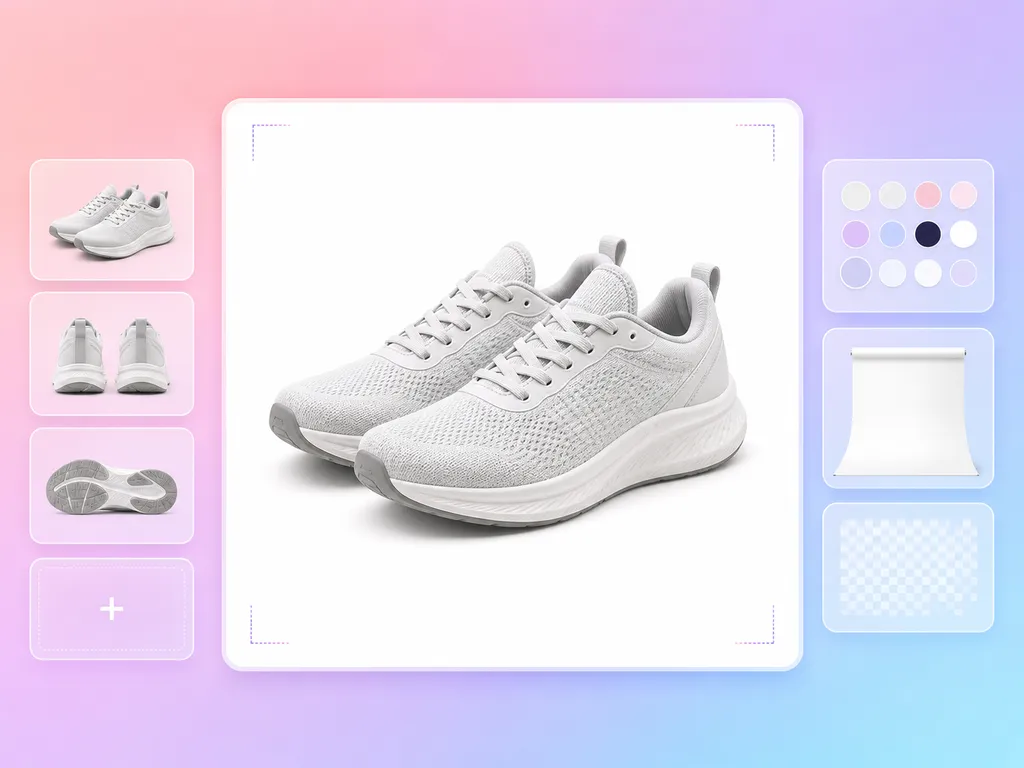
Prepare an image for your product page. Review the product details and your store’s image requirements before publishing.

Use a white background product image in a catalog layout. Review each image before combining it with other products.
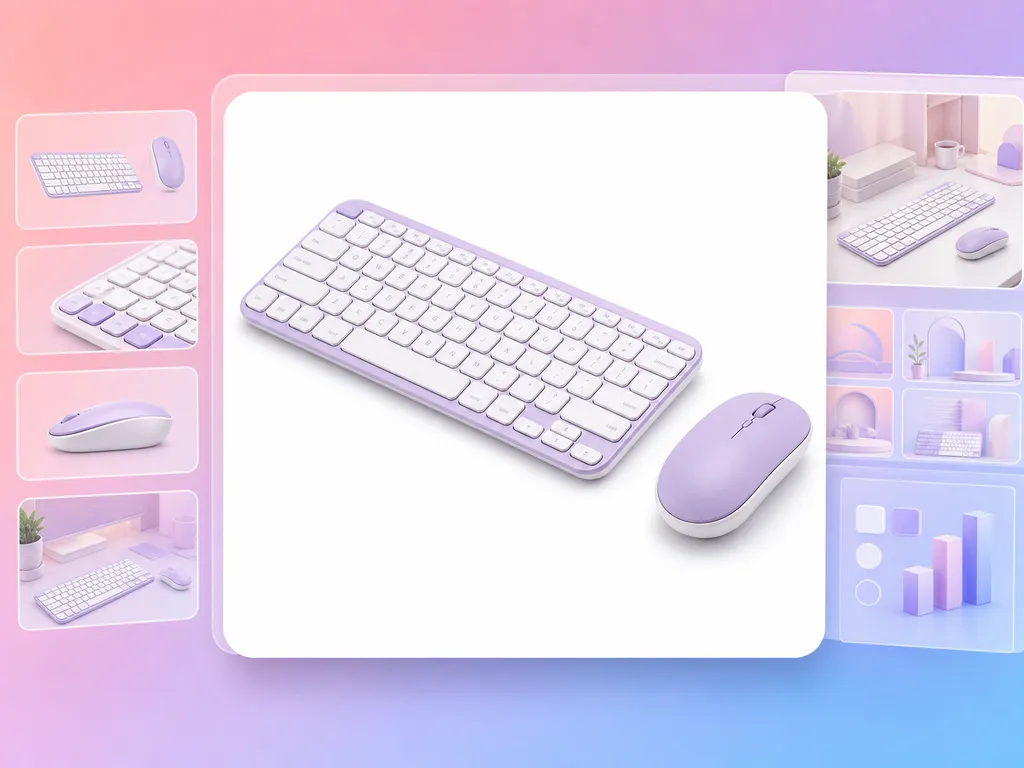
Use the downloaded product image as an asset in an ad or social layout. Complete any additional composition in your design workflow.



What to prepare before you upload one product photo, and what to look at in the generated image before you publish it.
Zoom in to 100% along the outline, straps, holes, laces and cords. Look for missing pieces, jagged edges or a bright halo around the product.
Transparent materials, shiny surfaces and fine fur or hair need a closer look. Check that reflections still read as part of the product and that nothing important turned white.
If part of the product is missing or blurred, use a clearer photo where the product is easier to tell apart from the background, then go through each check again on the new result. Each generation costs 22 credits.
The background is white, not transparent, and the image keeps the pixel size of your upload. Check that the white area looks even and that the size meets your platform’s minimum before you publish.
A white background image at the same pixel size as your upload.
Need the product in a styled scene rather than on plain white?
Use Background Replace.
Need several listing image types from one product photo?
Use AI Product Image.
PRODUCT PHOTOS
Open the White Background tool, choose one product photo, and submit the task. When processing is complete, review and download the result from the task list. Read the white background product photo guide.
Start with a clear photo showing the whole product and a visible outline. Avoid heavy blur, major obstructions, or cropped-off product details. Check the upload guidance in the workspace for supported files.
Inspect the generated image carefully around transparent materials, reflections, fine edges, and shadows. These areas can need additional retouching. A clearer source photo can help you review the result more easily.
You can prepare a product image for a listing, but check the downloaded result against your marketplace’s current requirements for background, framing, image size, and product accuracy before publishing.
The current tool accepts one product photo per task. Submit separate tasks for additional photos and review each result before downloading or publishing.
The tool generates images with a white background. The output image dimensions match those of the uploaded image.
Upload one product photo in the workspace, submit the task, and review the generated image before using it in your store or catalog.
AdsTurbo


