By Zengshi AI
✨AI LIP SYNC

AI Lip Sync Video Generator —Turn a Photo and Audio into a Talking Head Video

Upload a portrait photo and voiceover to create an AI talking-photo video with synchronized lip movement. Prepare clips for ads and product explainers, then review before publishing.
LIP SYNC

Upload a portrait photo and prepared voiceover audio to create a talking video.

Your Portrait

Audio File
Upload Audioor drop file here

How to create an AI talking photo with Lip Sync

Portrait photo + voiceover audio → a lip-synced talking video. The portrait is the visual input and the audio supplies the spoken content and pacing. Review the result before using it in a campaign.

  1. Add a portrait photo

    Upload a clear portrait or choose an available source image.

  2. Prepare voiceover audio

    Upload the voiceover you want the portrait to speak.

  3. Submit and review

    Start the task in the workspace, then review the generated video when processing finishes.

How AI Lip Sync uses your portrait and audio

Prepare the portrait and voiceover, then review the generated video.
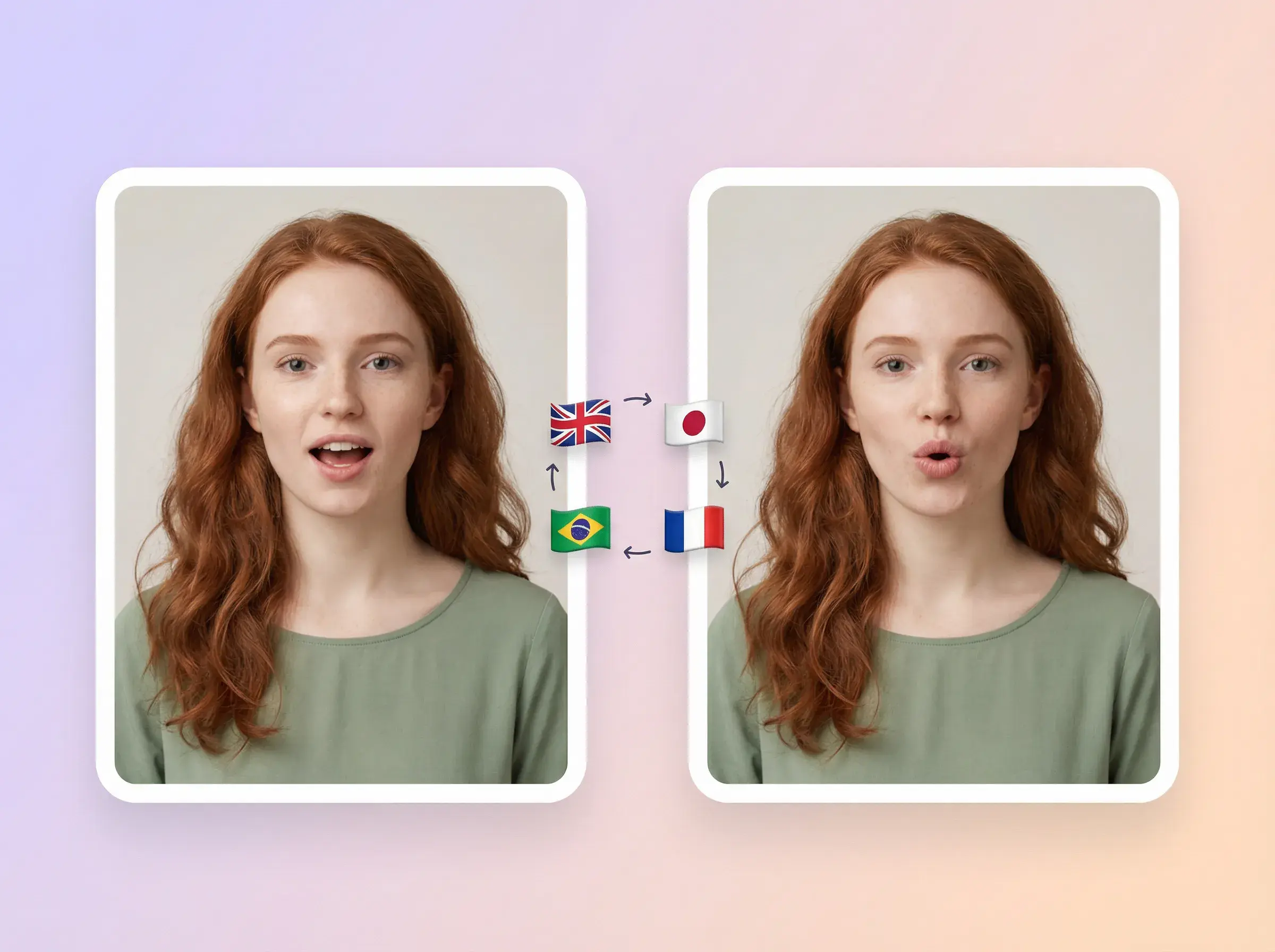
Illustration of two frames of the same red-haired woman with English, Japanese, Portuguese, and French language markers.

Audio-driven lip movement

Use your voiceover as the source for lip timing. Review the generated video for sync and clarity.
AUDIOLIP SYNC
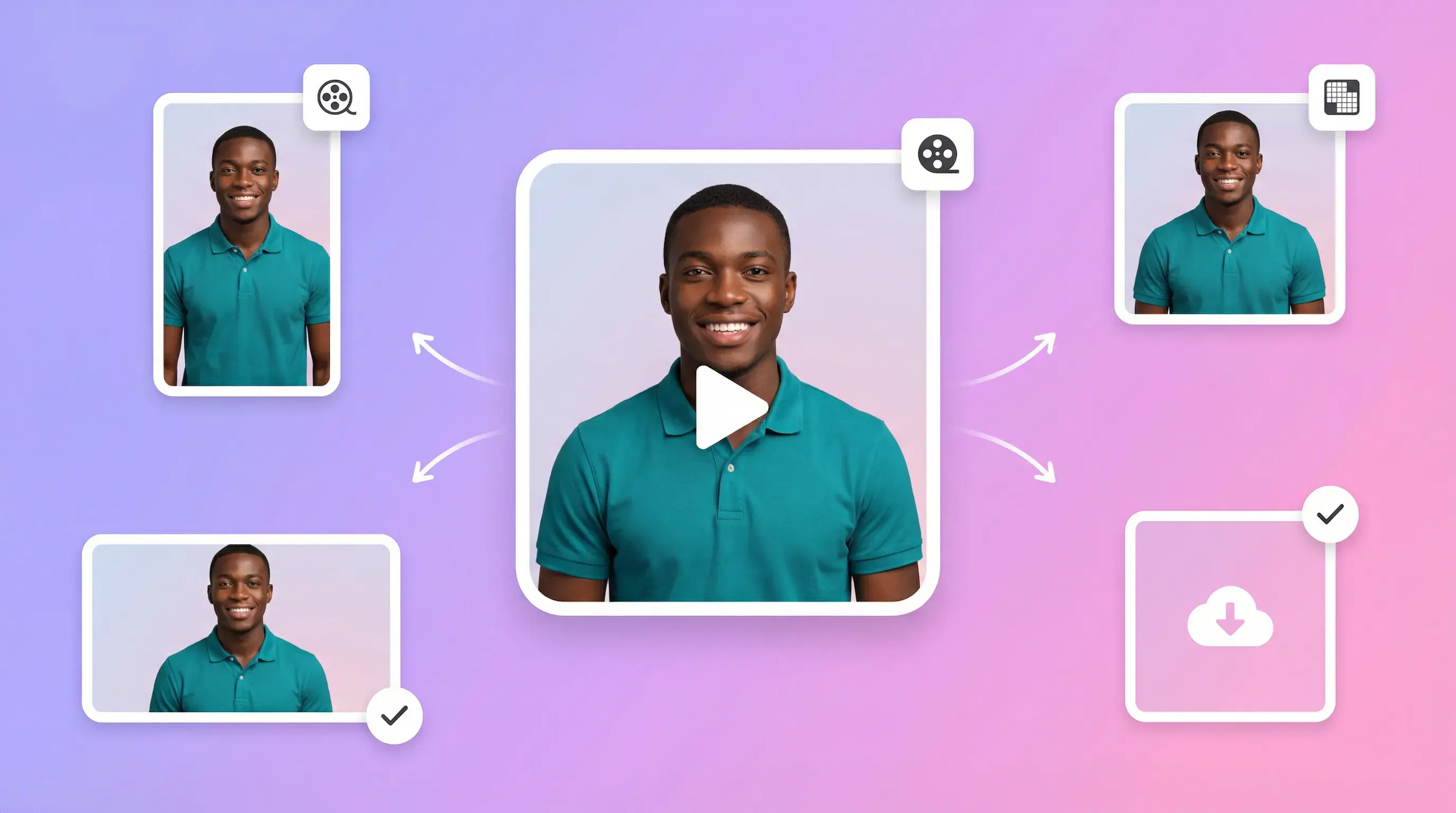
Illustration of a smiling man in a portrait frame surrounded by lip and audio icons.

Talking portrait video

Create a speaking video from a still portrait photo. Review facial appearance and movement in each result.
PORTRAITVIDEO
Illustration of a woman speaking in a portrait frame above two colored audio waveforms.

Prepared voiceover

Prepare a voiceover with the speaking tone you need before generating your video.
VOICEOVERTONE
Illustration of three speaker portraits connected around a multi-speaker icon.

Audio pacing

Set the pacing and pauses in your voiceover before uploading it.
AUDIOPACING
Illustration of a smiling woman in a portrait surrounded by expression emoji icons.

Portrait and audio

Combine a portrait photo with voiceover audio to submit a lip-sync task.
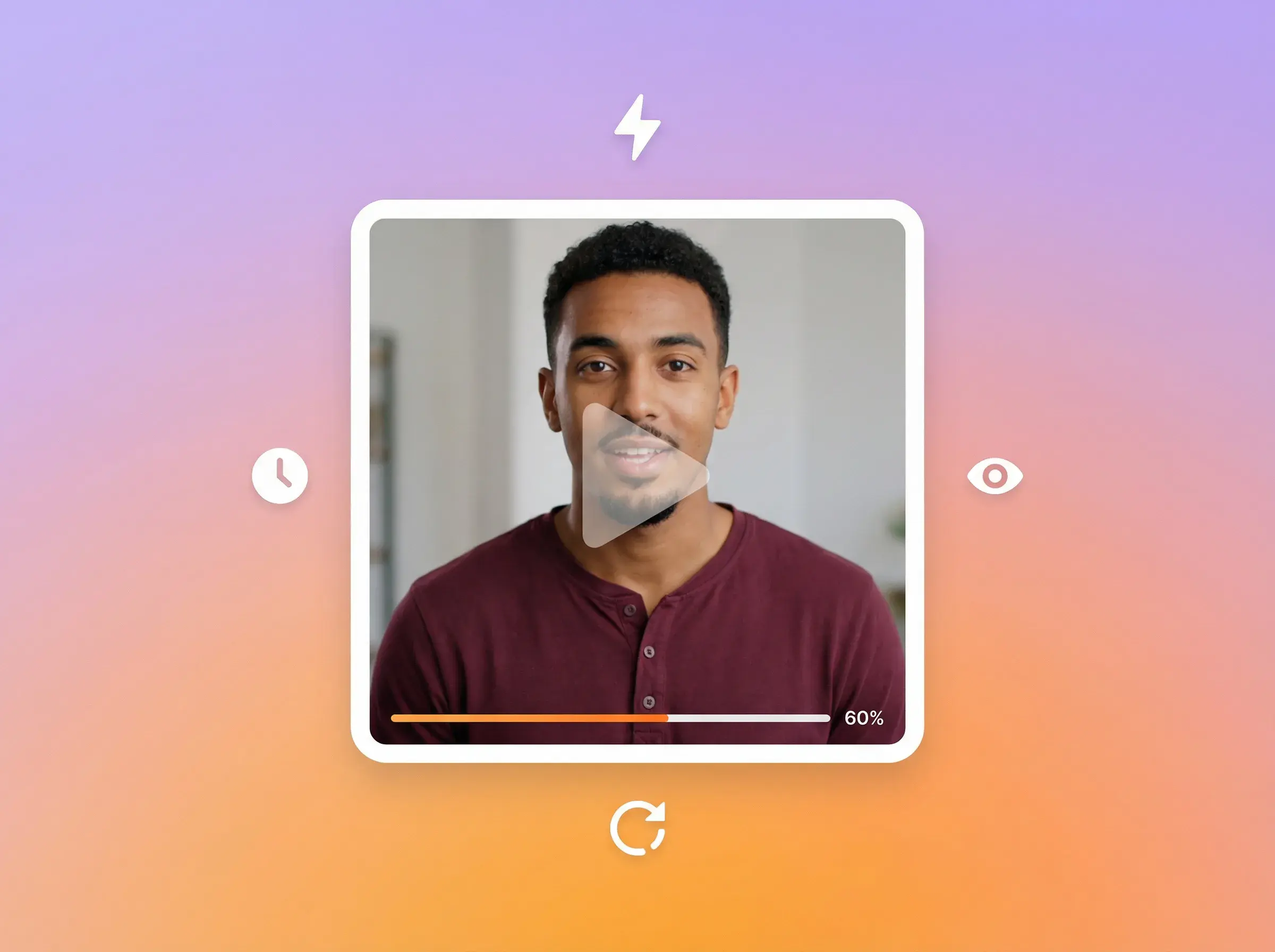
PORTRAITAUDIO
Illustration of a talking-head video preview with playback, timing, and review controls.

Reuse a source portrait

Use the same source portrait with different audio tracks to create separate versions. Review each result before choosing a version.
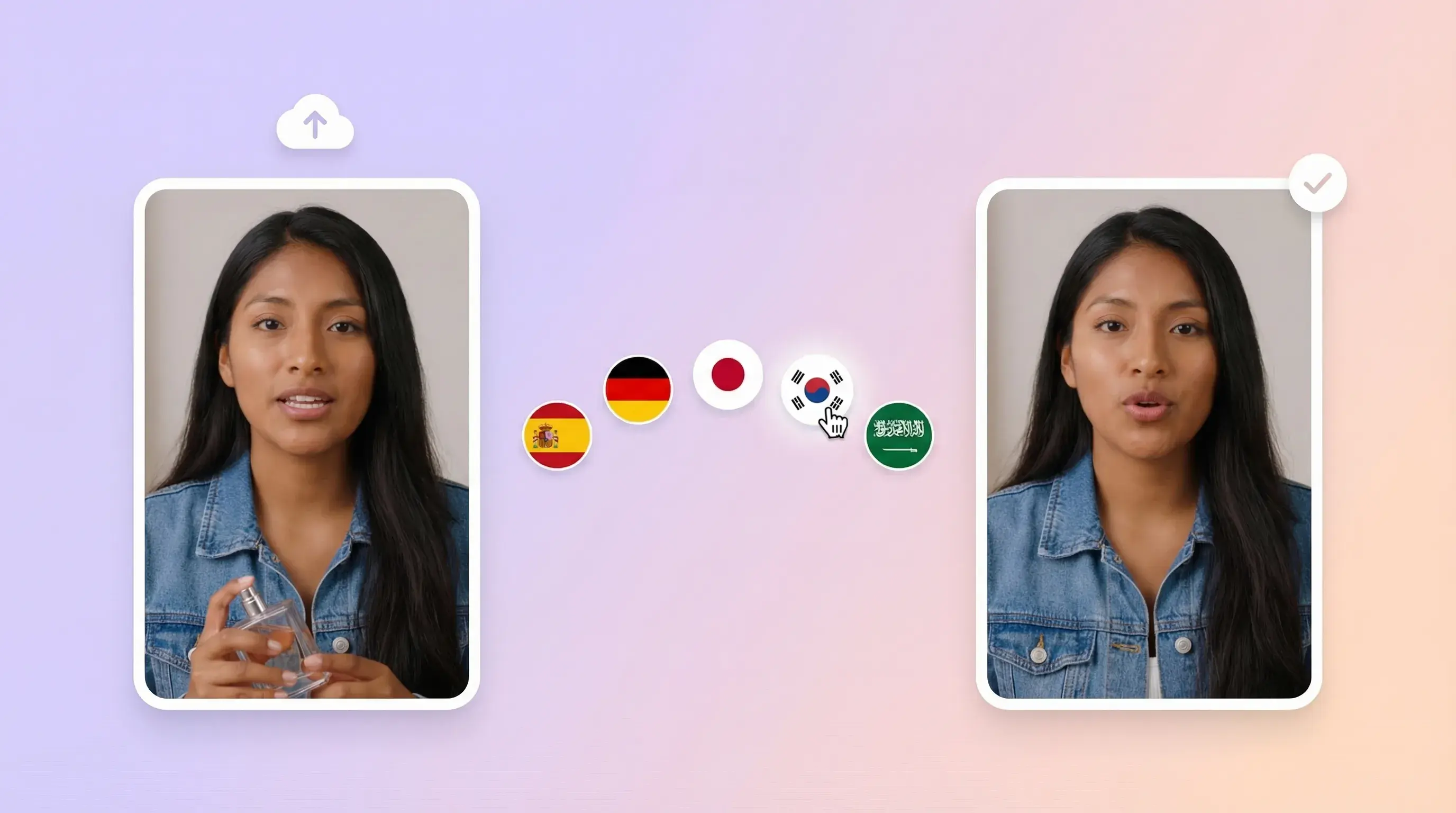
VERSIONSREVIEW

Everything inside AdsTurbo AI Lip Sync

Illustration of portrait input and output frames linked by several language markers.

Portrait and audio

Create a talking video from a portrait and voiceover

  • Choose a clear portrait photo and prepare voiceover audio
  • Submit a lip-sync task in the workspace
  • Review the generated result before publishing
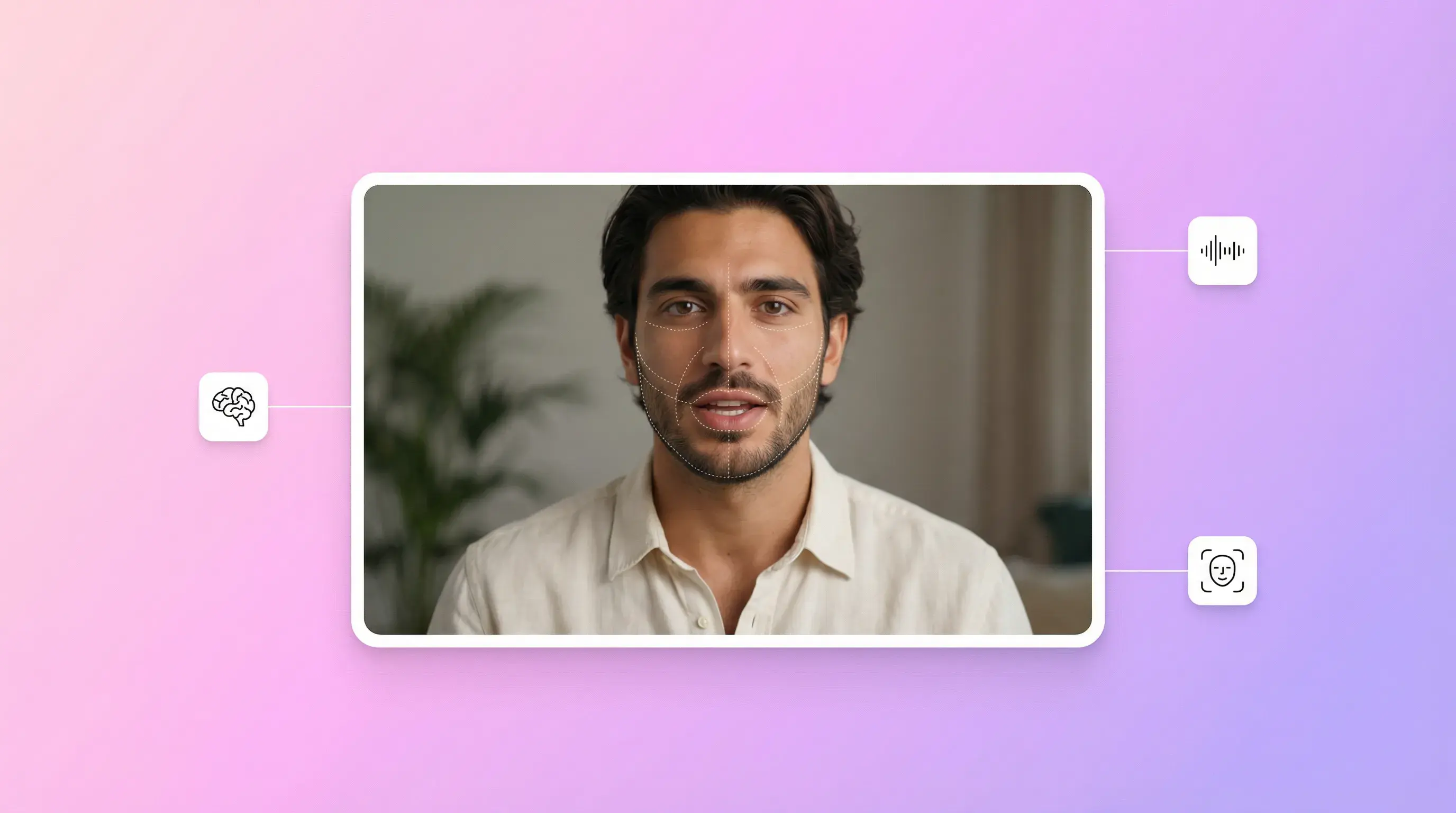
Illustration of a man in a talking-head video frame surrounded by analysis and timing icons.

Ad creative drafts

Prepare talking-photo clips for ad creative testing

  • Prepare a different voiceover for each hook or script
  • Reuse the source portrait for separate versions
  • Review every generated clip before using it in ads
Illustration of two frames of a woman speaking beside an audio waveform and editing icons.

Voiceovers for different markets

Prepare audio versions for each target market

  • Provide voiceover audio for the target market
  • Reuse the source portrait when submitting another version
  • Use Video Translation for an existing video translation workflow
Illustration of a presenter video with smaller output previews and export status icons.

Prepare the delivery

Set tone and pacing in the voiceover

  • Prepare the speaking tone in your audio
  • Set pauses and emphasis in the voiceover before upload
  • Upload the prepared audio and review the generated result

AdsTurbo AI Lip Sync and other production workflows

Compare the input and preparation steps

AdsTurbo AI Lip Sync
Manual editing (cut + mouth fixes)
Traditional filming
Hiring actors / studio
Completion time
Depends on input and processing
Depends on editing scope
Depends on shoot scheduling
Depends on talent and shoot scheduling
Source material
Existing portrait photo and prepared audio
Existing footage and prepared audio
New recording
New recording with booked talent
Creating another version
Submit another audio version
Edit another version
Record another take
Arrange another take
Target-language preparation
Prepare target-language voiceover
Prepare and edit target-language audio
Record target-language lines
Arrange target-language talent
Visual consistency
Reuse the source portrait and review the output
Review the edited footage
Review each recording
Cost estimate
Check credits in the workspace
Request an editing quote
Request a production quote
Request a talent and studio quote

What AI Lip Sync can generate

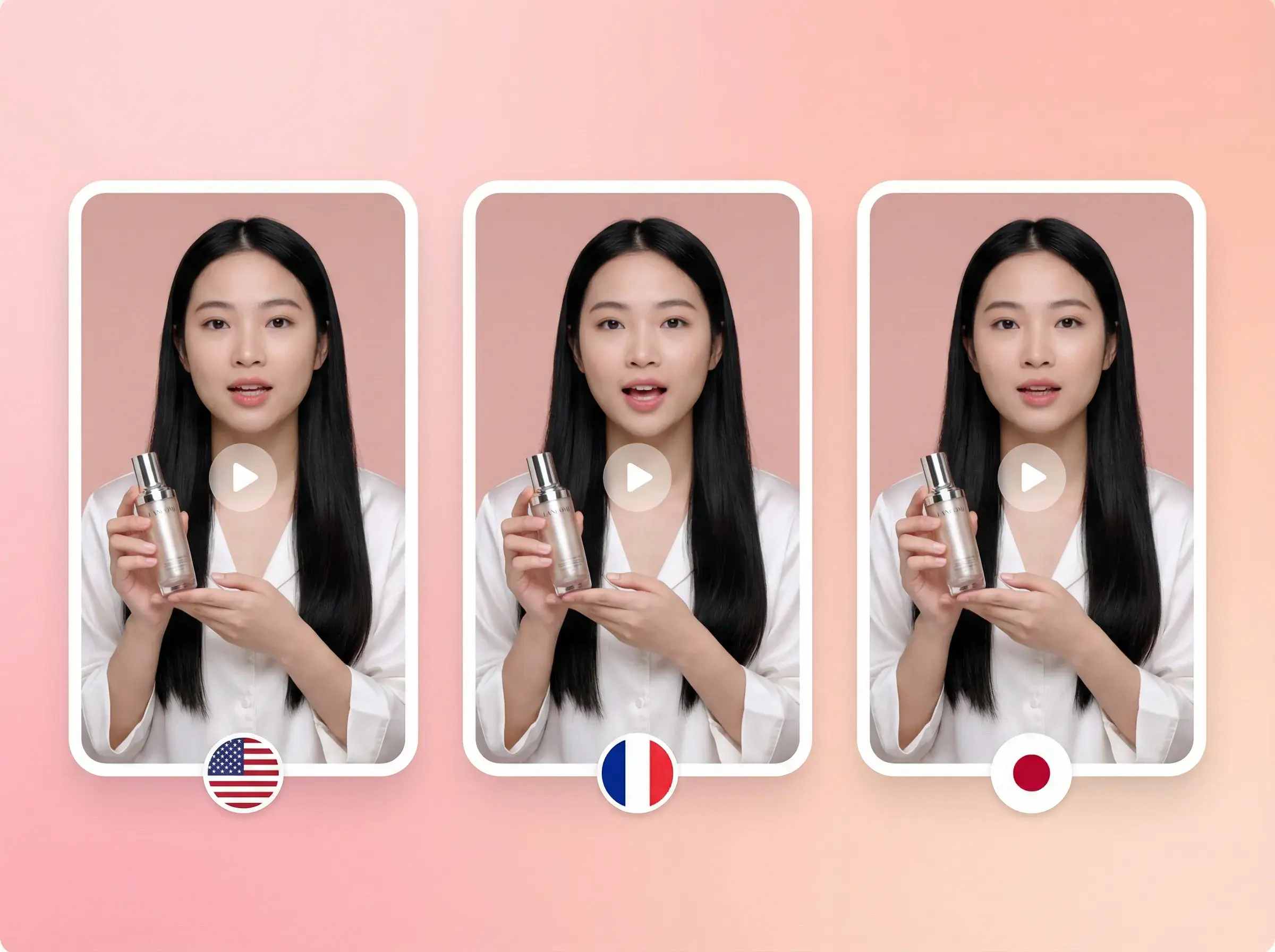
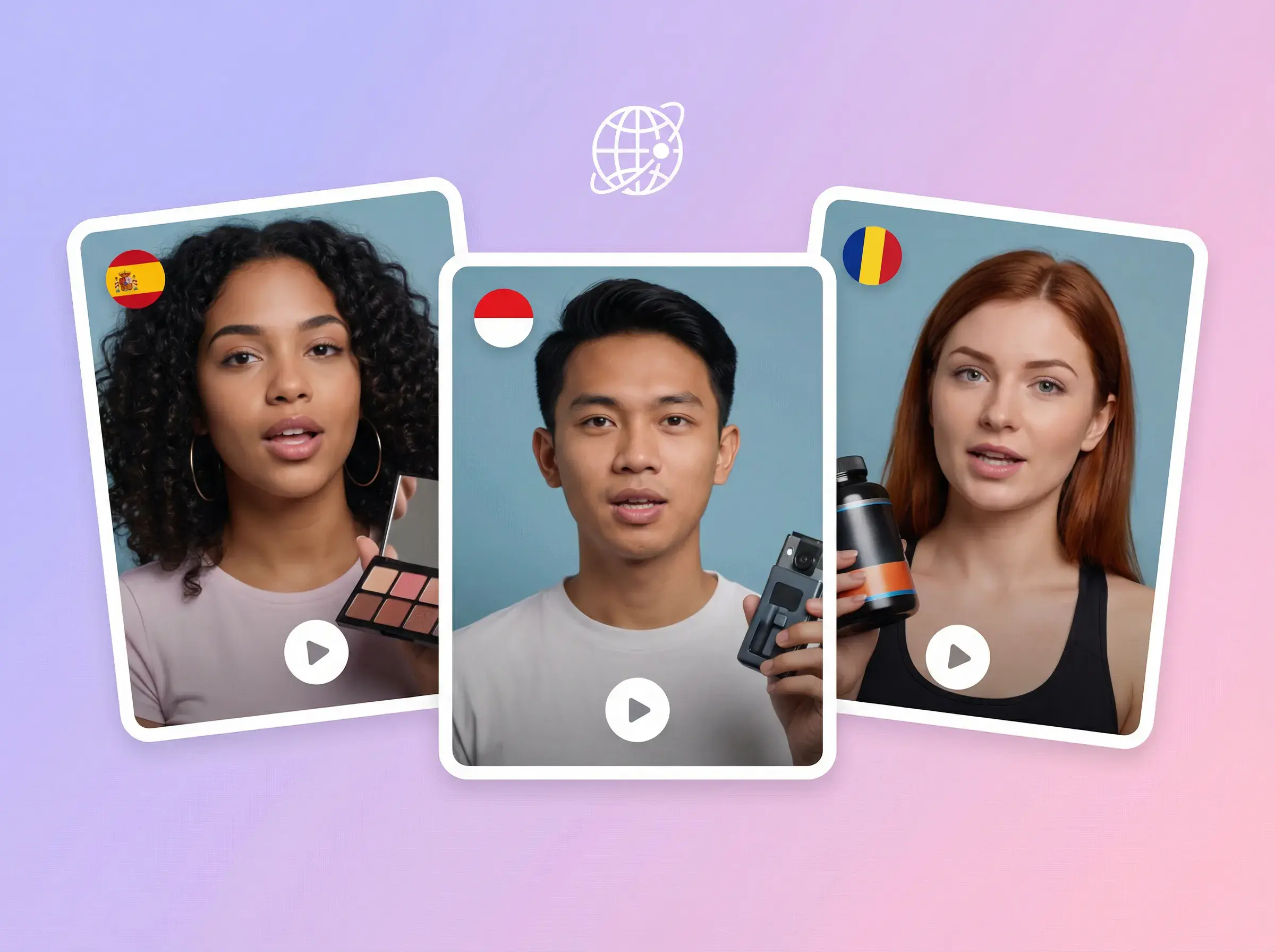
Illustration of three vertical talking-head videos with English, French, and Japanese language markers.

Talking-video ad drafts

Create portrait-led speaking clips as drafts for ad creative review.

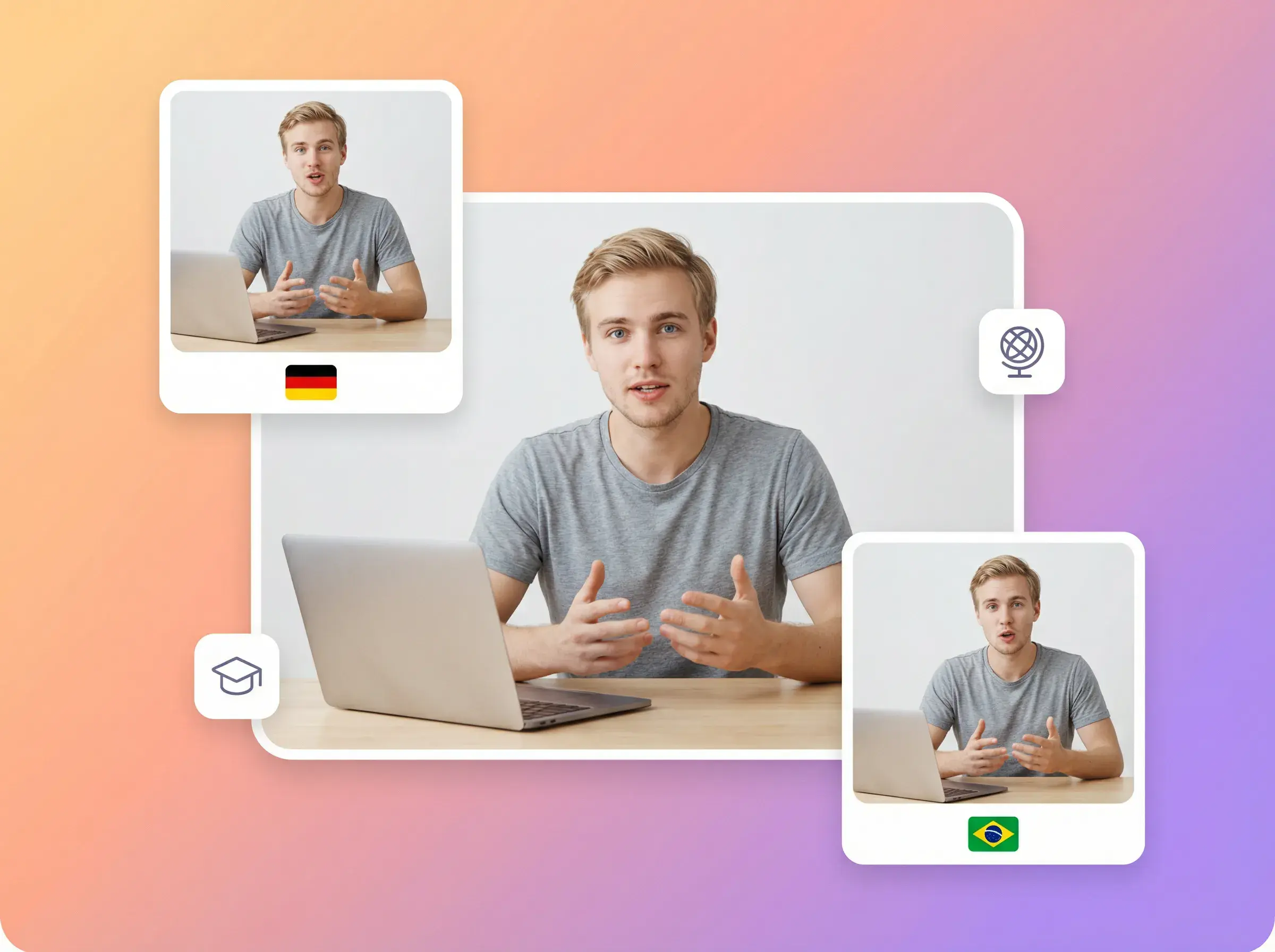
Illustration of a learner at a laptop with German and Brazilian Portuguese localized video versions.

Voiceover versions for target markets

Prepare a separate audio track for each market and review every generated version.

Illustration of three vertical creator videos with language and audio controls.

Product explainer drafts

Use prepared narration to create a portrait-led product explainer draft.

AI Lip Sync Inputs and Output

Prepare these before you open the workspace, and know what the generated result looks like.

Portrait photo
Use one clear, front-facing image with the face and mouth visible, saved as a JPG or PNG up to 10 MB (WebP and GIF are not supported). Common aspect ratios include 9:16, 16:9, 4:3, 3:4 and 1:1. Non-human characters are supported. Images with multiple people, side-facing subjects or unclear faces may produce lower-quality results.
Voiceover audio
Upload the voiceover you want the portrait to speak (MP3, WAV, M4A or AAC, up to 10 minutes), or generate it with text-to-speech from a script of up to 500 characters. To keep the upload stable, keep the audio file within 50 MB. Set the tone, pacing and pauses in the audio before you submit.
Voiceover language
Prepare a voiceover for each target language. Audio is not translated automatically. Singing is supported, but background music may reduce result quality.
Generated video
A lip-synced talking video in 1080p. The aspect ratio follows the uploaded portrait, and captions are not included. Results appear on the Project page in the workspace.
Review before use
Check lip timing, audio clarity and facial appearance in each result before using the clip in a campaign.

Who should use AI Lip Sync?

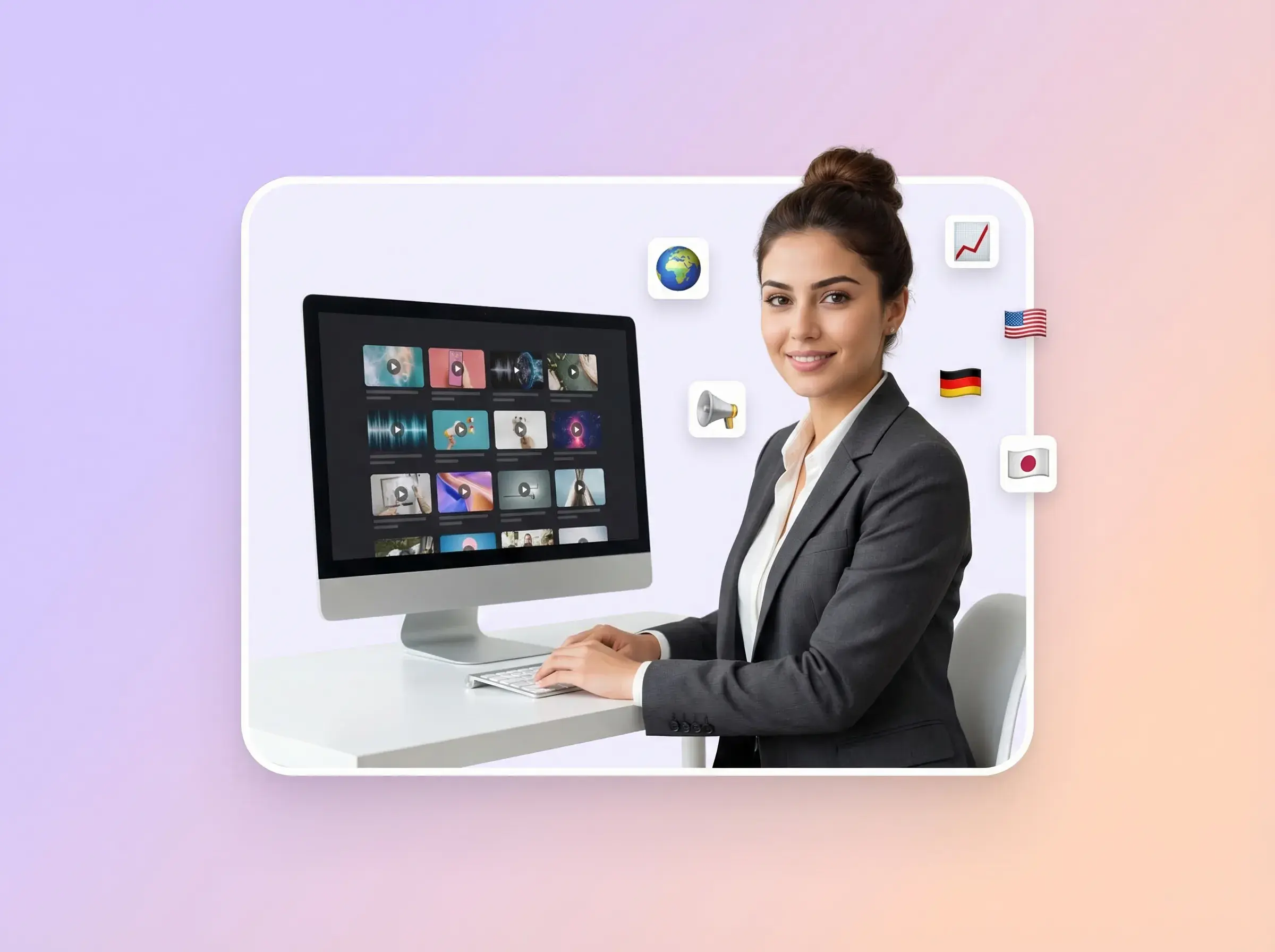
Illustration of a marketer reviewing multiple localized talking-video assets on a monitor.

E-commerce and performance teams

  • Prepare portrait-led product explanations
  • Try separate voiceover hooks
  • Review generated drafts before campaign use
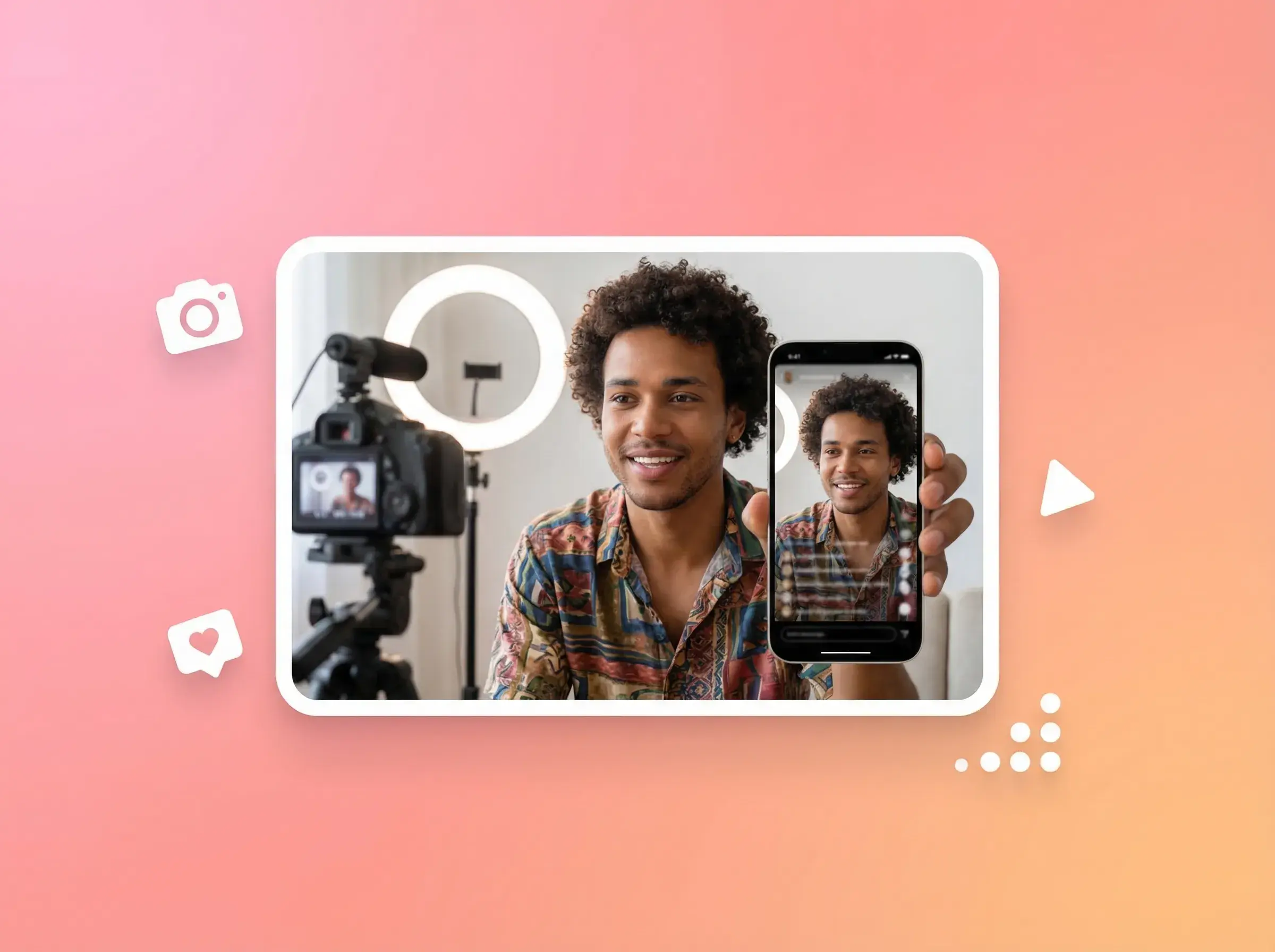
Illustration of a creator filming a presenter with a camera and mobile preview.

Creators and social teams

  • Prepare speaking-video drafts from a portrait
  • Reuse source portraits for separate scripts
  • Review lip timing and facial appearance
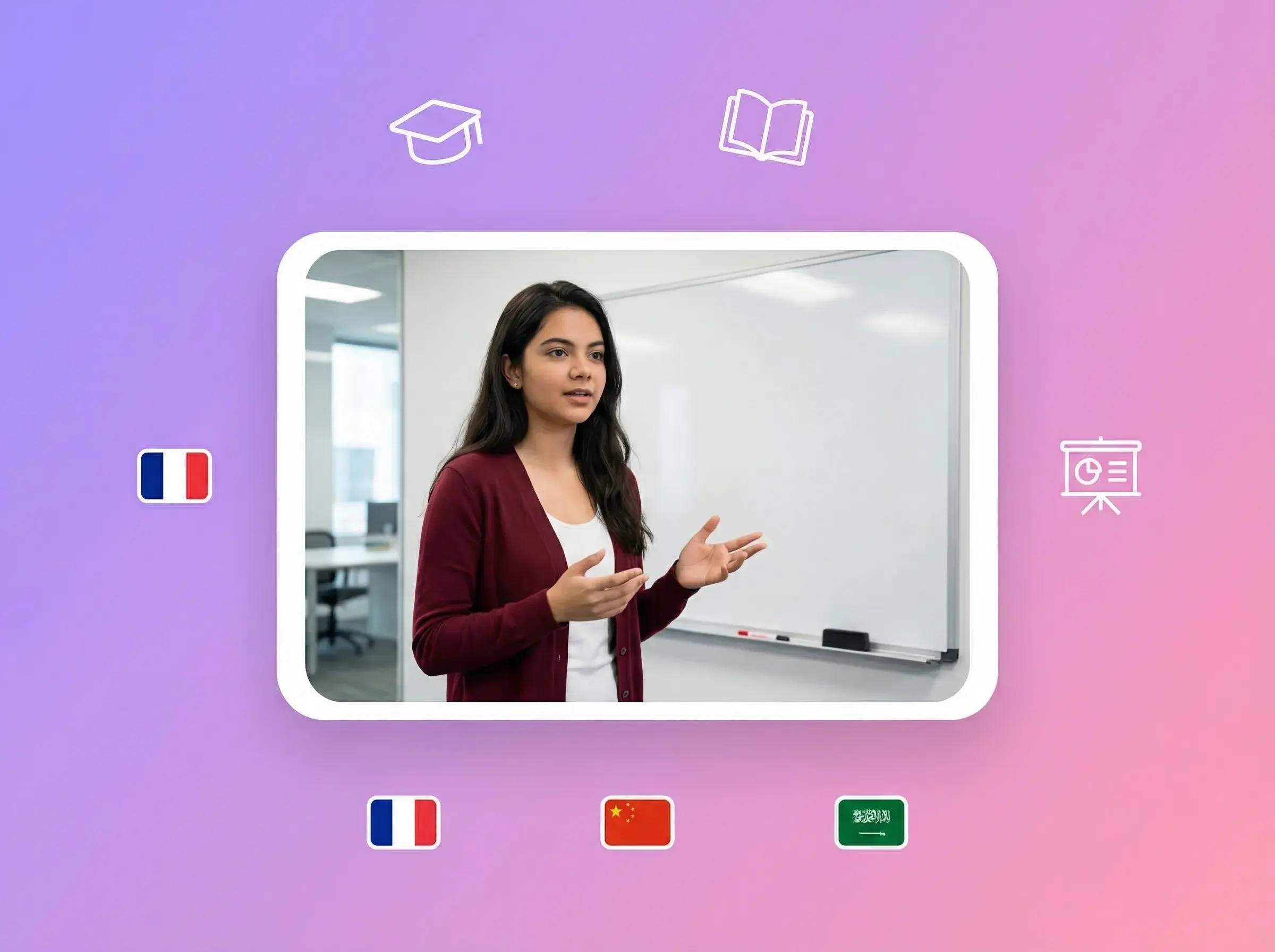
Illustration of a teacher presenting in a classroom video with French, Chinese, and Arabic language markers.

Agencies and creative teams

  • Prepare portrait-led drafts for client review
  • Create separate voiceover versions
  • Review input permissions and generated results

FAQ

AI LIP SYNC

01What inputs do I need?

Use a portrait photo and prepared voiceover audio. The photo can be a JPG or PNG up to 10 MB; WebP and GIF are not supported. Uploaded audio can be MP3, WAV, M4A or AAC and up to 10 minutes long; to keep the upload stable, we recommend keeping the file within 50 MB. You can also generate the voiceover with text-to-speech from a script of up to 500 characters.

02How should I check lip-sync quality?

The tool generates lip movement from your audio. Review lip timing and facial appearance in the result before using the video. Learn how to review lip timing and localized ad drafts.

03Can I control emotion or delivery style?

Prepare tone, pacing and pauses in the voiceover before upload. The current web workflow does not expose a separate Character Performance field.

04Can I create versions for creative testing?

Reuse a source portrait and upload different audio for each version. Submit and review each result separately.

05Can I create versions for other languages?

Prepare voiceover audio for each target language and submit another version with the same source portrait. For translating an existing video, explore Video Translation.

06Can I use text instead of uploaded audio?

Yes. Use the text-to-speech option to prepare voiceover audio from a script of up to 500 characters. Text-to-speech is free and has no plan-tier restriction. Video generation currently uses 24 credits per second of audio.

07How are credits calculated?

Video generation currently uses 24 credits per second of audio. Text-to-speech is free, and credits are returned when generation fails. There is no free trial. Check the estimate in the workspace before submitting.

08How long does generation take?

Generation is processed as a task. Check the task status in the workspace and review the result when it finishes.

09Where can I review the generated result?

Generated results appear on the Project page in 1080p. The video aspect ratio follows the uploaded image, and captions are not included. Review the result before campaign use. Need captions for your clip? Explore Video Subtitle.
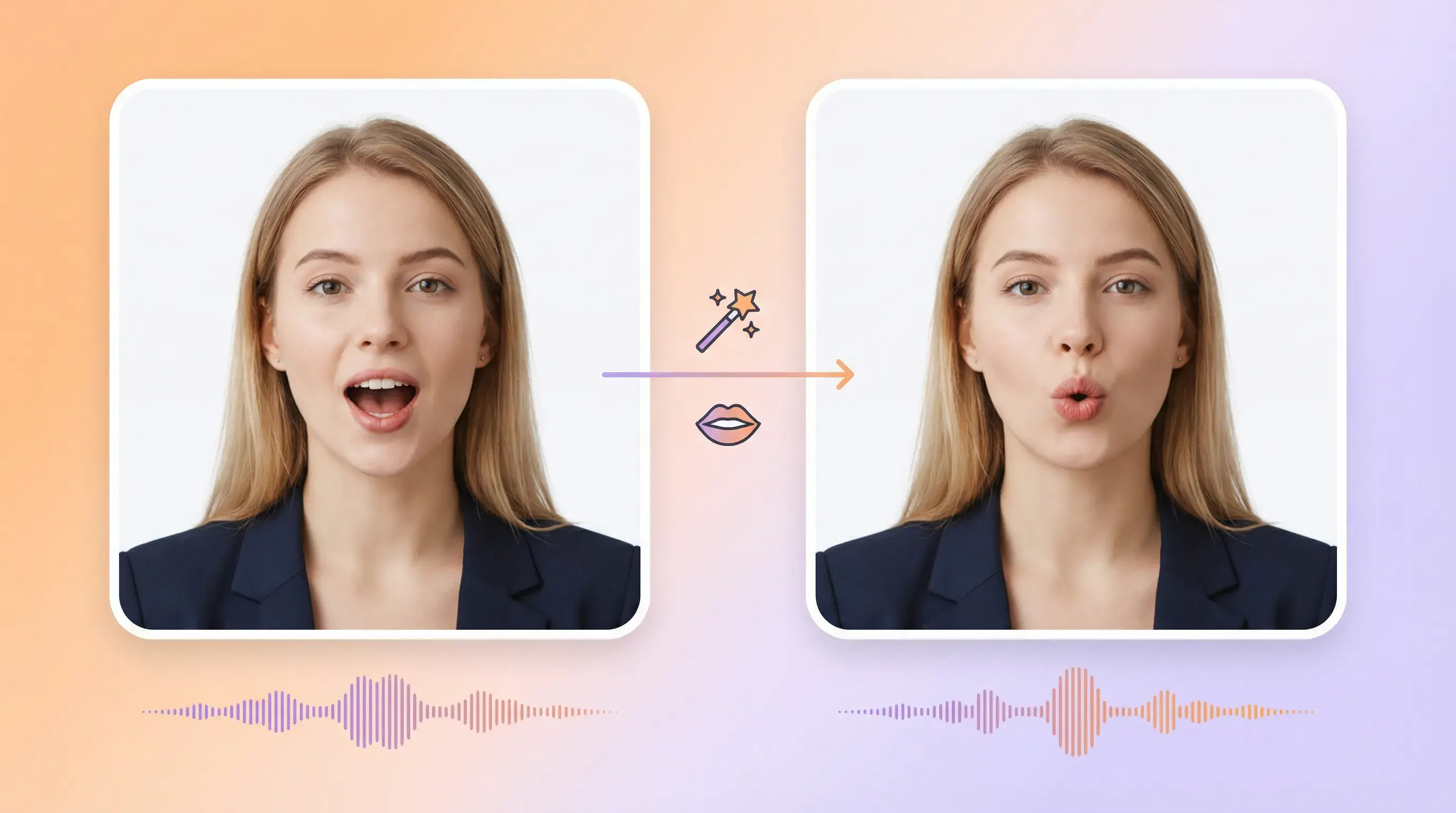
10Can I use an existing video?

No. The web and API workflows shown here start with a portrait image. For translating an existing video, explore Video Translation.

Create a talking video from a portrait and voiceover

Prepare your portrait and audio, open the workspace, and review the generated result before publishing.